Setting Up Non-Deductible VAT in Business Central, Step by Step
A full walkthrough of non-deductible VAT in Business Central: turning the feature on, setting up VAT posting groups for 100% and 50% non-deductible VAT, and posting a purchase invoice to see exactly where every amount lands.
Some purchase VAT can’t be reclaimed. Business entertainment, company cars, or anything used partly for exempt activities are typical examples, and the rules depend on your country. Business Central handles this with the non-deductible VAT feature: you say what percentage of the VAT on a VAT posting setup combination can’t be deducted, and Business Central splits the VAT when you post.
This post goes through the whole setup in a CRONUS UK company on Business Central 29.1, then posts one purchase invoice with three lines so you can see the result in the statistics, the G/L entries, the VAT entries and the item’s value entries.
If you only want to know where the non-deductible part ends up in the general ledger, I covered that in Where Does Non-Deductible VAT Post?.
What we’ll set up
| VAT Prod. Posting Group | VAT % | Non-Deductible VAT % | Meaning |
|---|---|---|---|
| ND-100 | 20 | 100 | None of the VAT can be reclaimed |
| ND-50 | 20 | 50 | Half of the VAT can be reclaimed |
Both are combined with the existing DOMESTIC VAT business posting group.
Step 1: Turn on the feature
Search for VAT Setup, switch to edit mode, and turn on Enable Non-Deductible VAT.
Business Central asks you to confirm, and it means it:
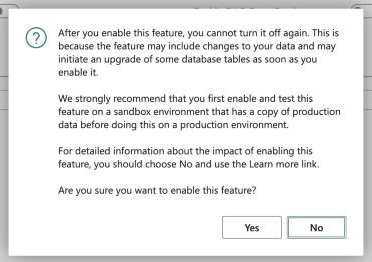 Once you choose Yes, there is no way back for this company.
The feature can’t be switched off again, and enabling it may upgrade some tables. Microsoft recommends trying it in a sandbox with a copy of your production data first, and so do I. I used a demo company for this post.
After you confirm, a Non-Deductible VAT section appears on the same page:
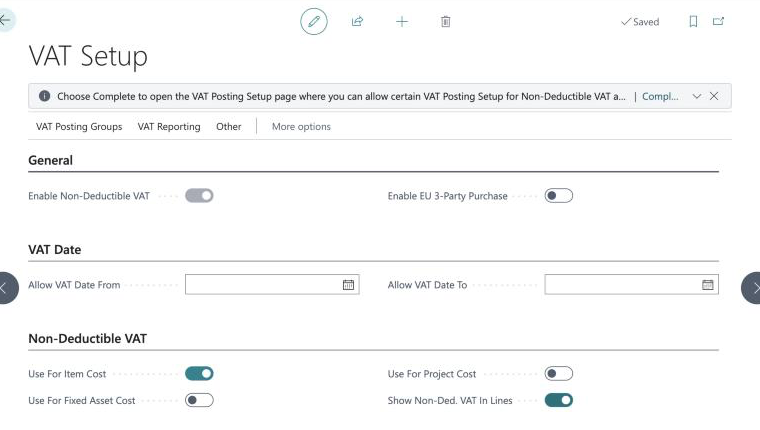
| Field | What it does |
|---|---|
| Use For Item Cost | Adds the non-deductible VAT to the cost of items you buy. When off, the amount is recorded in the general ledger only and the item cost stays at the net price. |
| Use For Fixed Asset Cost | Same idea for fixed assets: the non-deductible VAT becomes part of the acquisition cost and is depreciated with it. |
| Use For Project Cost | Adds the non-deductible VAT to the project cost when you buy for a project. |
| Show Non-Ded. VAT In Lines | Shows the Non-Deductible VAT Base and Non-Deductible VAT Amount columns on purchase lines. It only affects what you see; the amounts are calculated either way. |
For this walkthrough I turned on Use For Item Cost and Show Non-Ded. VAT In Lines, and left the other two off.
Step 2: Create VAT product posting groups
You need a VAT product posting group for each non-deductible percentage. You could change an existing group such as STANDARD, but that changes the behaviour of every item and G/L account that uses it. Separate groups keep the effect limited to what you assign them to.
On VAT Product Posting Groups I added:
- ND-100: Non-deductible VAT 20% (100% blocked)
- ND-50: Non-deductible VAT 20% (50% blocked)
Step 3: Set up the VAT posting setup combinations
Open VAT Posting Setup, choose New, and fill in the card for DOMESTIC / ND-100:
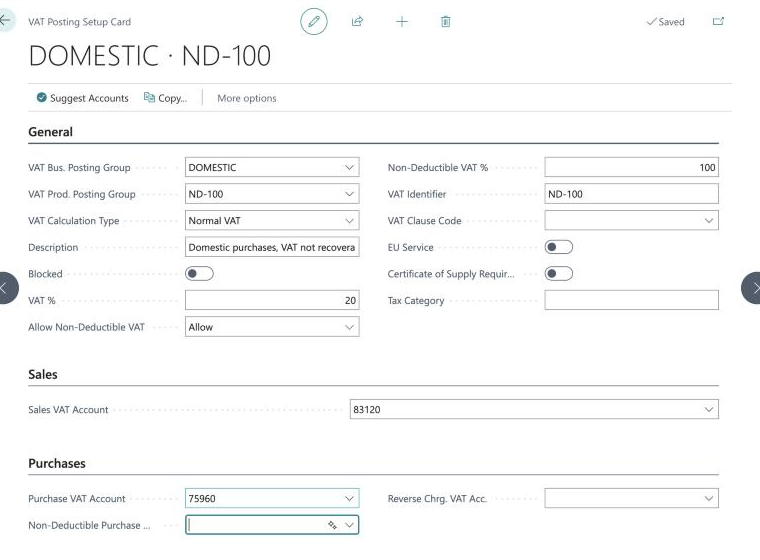
| Field | Value | Notes |
|---|---|---|
| VAT Calculation Type | Normal VAT | |
| VAT % | 20 | |
| Allow Non-Deductible VAT | Allow | The switch for this combination. It must be Allow for the percentage to have any effect. |
| Non-Deductible VAT % | 100 | The share of the VAT that can’t be reclaimed. |
| VAT Identifier | ND-100 | Must be unique. See below. |
| Sales VAT Account | 83120 | Same as DOMESTIC / STANDARD. |
| Purchase VAT Account | 75960 | Receives the deductible part. |
| Non-Deductible Purchase VAT Account | blank | Blank means the non-deductible part goes to the purchase line’s account. |
Then the same for DOMESTIC / ND-50, with Non-Deductible VAT % = 50 and VAT Identifier ND-50:
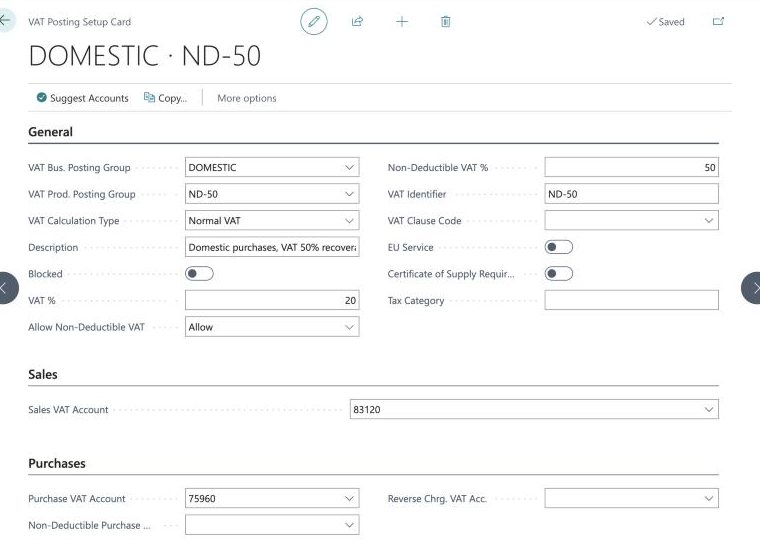
The list now shows both rows with Allow in the Allow Non-Deductible VAT column:
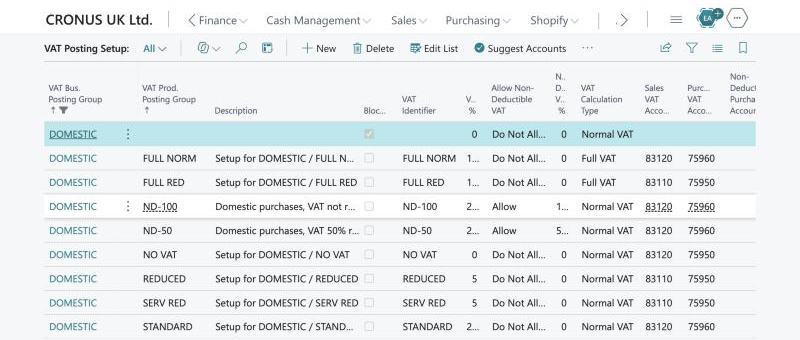
Two things to watch here:
- Give each non-deductible percentage its own VAT Identifier. Business Central groups VAT amounts by identifier when it calculates a document. If two combinations with different non-deductible percentages share an identifier, the non-deductible total comes out wrong. Microsoft calls this out in the docs.
- The Non-Deductible Purchase VAT Account decides where the blocked VAT goes. Leave it blank and the amount goes to the same account as the purchase line, so it becomes part of the expense, item, fixed asset or project cost. Fill it in and the amount goes to that account instead. I left it blank here. The earlier post compares both options.
Step 4: Create a purchase invoice
To see both percentages, plus the item cost setting, I created one invoice for vendor 20000 First Up Consultants with three lines:
| Line | Type | No. | VAT Prod. Posting Group | Amount | VAT 20% | Non-deductible part |
|---|---|---|---|---|---|---|
| 1 | G/L Account | 31420 IT Services | ND-100 | 1,000.00 | 200.00 | 200.00 |
| 2 | G/L Account | 31420 IT Services | ND-50 | 1,000.00 | 200.00 | 100.00 |
| 3 | Item | 1896-S ATHENS Desk | ND-50 | 500.00 | 100.00 | 50.00 |
| 2,500.00 | 500.00 | 350.00 |
The VAT product posting group comes from the G/L account or item. In real use you’d set ND-100 or ND-50 on the G/L account or item card so users don’t have to remember. For the demo I changed it on the lines:
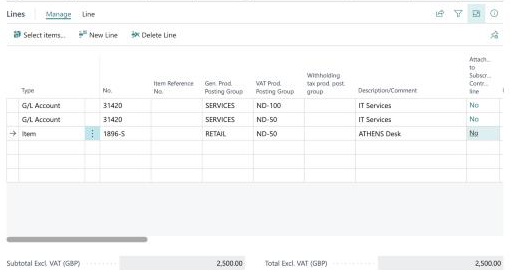
Because Show Non-Ded. VAT In Lines is on, you can scroll right on the lines to see the split before posting:
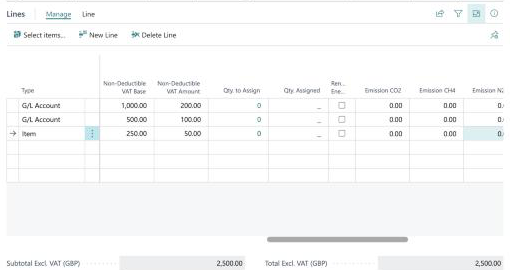
Notice that the Non-Deductible VAT Base is the line amount times the non-deductible percentage, not the full line amount. On the ND-50 G/L line it’s 500, half of 1,000.
Step 5: Check the statistics
Statistics (F7) shows the VAT per VAT identifier, split into the non-deductible and deductible parts:
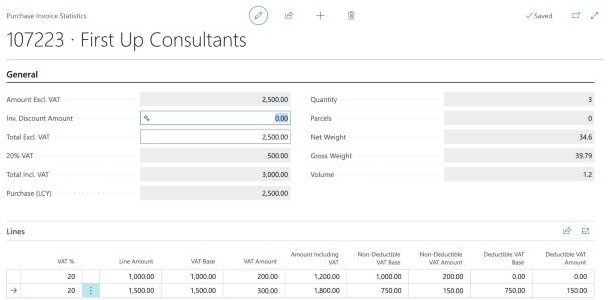
| VAT Identifier | VAT Base | VAT Amount | Non-Ded. VAT Amount | Deductible VAT Amount |
|---|---|---|---|---|
| ND-100 | 1,000.00 | 200.00 | 200.00 | 0.00 |
| ND-50 | 1,500.00 | 300.00 | 150.00 | 150.00 |
The vendor still gets paid the full 3,000.00. Non-deductible VAT doesn’t change what you owe the supplier, only how much of it you can claim back.
This is also where you fix rounding differences against the supplier’s invoice. If Allow VAT Difference is on in Purchases & Payables Setup and Max. VAT Difference Allowed is set in General Ledger Setup, you can edit both the VAT Amount and the Non-Deductible VAT Amount here before posting.
Step 6: Preview the posting
Always preview before you post. On the invoice, open the Post menu and choose Preview Posting:
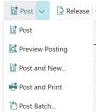
Nothing is written to the ledgers yet. The preview shows the G/L entries Business Central would create:
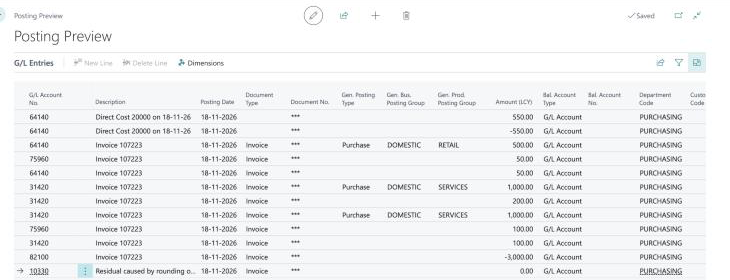
Here are the same twelve entries in the same order as the screenshot, with the amount split into debit and credit:
| # | G/L Account | Debit | Credit | What it is |
|---|---|---|---|---|
| 1 | 64140 Goods for Resale | 550.00 | Item inventory value (500 + 50 VAT) | |
| 2 | 64140 Goods for Resale | 550.00 | Direct cost applied, other side of #1 | |
| 3 | 64140 Goods for Resale | 500.00 | Line 3 item, net amount | |
| 4 | 75960 Purchase VAT Normal | 50.00 | Line 3, deductible VAT | |
| 5 | 64140 Goods for Resale | 50.00 | Line 3, non-deductible VAT | |
| 6 | 31420 IT Services | 1,000.00 | Line 1 (ND-100), net amount | |
| 7 | 31420 IT Services | 200.00 | Line 1, non-deductible VAT | |
| 8 | 31420 IT Services | 1,000.00 | Line 2 (ND-50), net amount | |
| 9 | 75960 Purchase VAT Normal | 100.00 | Line 2, deductible VAT | |
| 10 | 31420 IT Services | 100.00 | Line 2, non-deductible VAT | |
| 11 | 82100 Vendors, Domestic | 3,000.00 | Owed to the vendor | |
| 12 | 10330 Interest Income | 0.00 | ACY rounding, not VAT | |
| Total | 3,550.00 | 3,550.00 |
Entries 1 and 2 have the description Direct Cost 20000 on 18-11-26 and entry 12 Residual caused by rounding of Additional-Currency Amount. All the others are Invoice 107223. Entries 3, 6 and 8 have Gen. Posting Type Purchase; the VAT entries don’t.
Business Central shows one Amount (LCY) column. A positive amount is a debit and a negative amount is a credit, so entry 2 (-550.00) and entry 11 (-3,000.00) are the credits.
Totals by account make the effect easier to see:
| G/L Account | Debit | Credit | Net |
|---|---|---|---|
| 31420 IT Services | 2,300.00 | 2,300.00 | |
| 64140 Goods for Resale | 1,100.00 | 550.00 | 550.00 |
| 75960 Purchase VAT Normal | 150.00 | 150.00 | |
| 82100 Vendors, Domestic | 3,000.00 | -3,000.00 |
What this tells you:
- Only 150 reaches Purchase VAT Normal (75960). That’s the VAT you can reclaim: 100 from line 2 and 50 from line 3. The other 350 is non-deductible and sits on the expense and item accounts.
- The expense account carries the real cost. 31420 ends up at 2,300: 2,000 net plus 300 of VAT you can’t get back.
- The non-deductible entries have no Gen. Posting Type or posting groups (entries 5, 7 and 10). That’s how you tell them apart from the net amount on the same account.
- The item is valued at 550 (entry 1). Because Use For Item Cost is on, the 50 of non-deductible VAT is part of the item cost. In CRONUS UK the inventory account for RESALE items and the purchase account are both 64140, so entries 1 and 2 cancel each other out on that account. In most charts of accounts they would hit different accounts.
- Entry 12 is 0.00. CRONUS UK has an additional reporting currency, and Business Central posts the rounding difference in that currency. It has nothing to do with non-deductible VAT.
- The vendor is credited the full 3,000 (entry 11). Non-deductible VAT changes what you can reclaim, not what you pay.
Step 7: Post the invoice
If the preview looks right, close it and choose Post > Post. Business Central asks for confirmation:
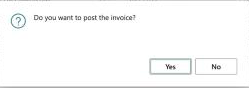
Choose Yes. The invoice is posted and gets a number from the posted invoice number series, here 108234:
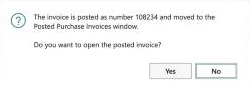
The G/L entries on posted invoice 108234 are the same twelve entries as the preview, now with a real document number instead of ***.
Step 8: Look at the posted entries
VAT entries

| Entry | VAT Prod. Posting Group | Base | Amount | Non-Deductible VAT Base | Non-Deductible VAT Amount |
|---|---|---|---|---|---|
| 555 | ND-50 (item) | 250.00 | 50.00 | 250.00 | 50.00 |
| 556 | ND-100 | 0.00 | 0.00 | 1,000.00 | 200.00 |
| 557 | ND-50 (G/L) | 500.00 | 100.00 | 500.00 | 100.00 |
Base and Amount on a VAT entry hold only the deductible part. The non-deductible part has its own columns. The 100% line has a Base and Amount of 0.00, so it adds nothing to the input VAT on your VAT return, which is what you want.
If your VAT return also has to show the full purchase value, including the non-deductible part, check your VAT statement setup. As the entries above show, the Base column alone doesn’t include it.
Value entries

The item’s direct cost value entry is 550.00: the 500 purchase price plus 50 of non-deductible VAT. With Use For Item Cost off, it would be 500 and the 50 would stay in the general ledger only.
Things to know before you turn it on
- It can’t be turned off. Test in a sandbox first.
- Not with unrealized VAT. You can’t combine non-deductible VAT with unrealized VAT.
- Not on prepayment invoices. Non-deductible VAT isn’t supported on prepayments.
- One VAT Identifier per non-deductible percentage. Shared identifiers give wrong totals.
- Set the groups on the master data. Put the non-deductible VAT product posting group on the G/L accounts and items that need it, so users don’t have to change it on every line.
- Decide on the Non-Deductible Purchase VAT Account per combination. Blank adds the cost to the expense or asset; filled in collects it on one account. See the earlier post for a side-by-side example.
Quick reference
| Where | Field | Value used here |
|---|---|---|
| VAT Setup | Enable Non-Deductible VAT | On (permanent) |
| VAT Setup | Use For Item Cost / Fixed Asset Cost / Project Cost | Item cost on, others off |
| VAT Setup | Show Non-Ded. VAT In Lines | On |
| VAT Product Posting Groups | New codes | ND-100, ND-50 |
| VAT Posting Setup | Allow Non-Deductible VAT | Allow |
| VAT Posting Setup | Non-Deductible VAT % | 100 and 50 |
| VAT Posting Setup | VAT Identifier | Unique per percentage |
| VAT Posting Setup | Non-Deductible Purchase VAT Account | Blank |