Aged Accounts Payable (Excel) Drops Entries in Business Central 28.x
In BC 28.x the Excel versions of the aged accounts reports silently leave out entries that are not yet due or older than the aging periods, so the total no longer matches the vendor balance. Here is why, and how version 29 fixes it.
I was reconciling payables at month end and noticed that the Aged Accounts Payable (Excel) report did not agree with the classic Aged Accounts Payable report. The difference was large and it had a pattern: anything not yet due was missing, and so was anything older than the aging periods.
This post walks through what the report does in BC 28.x, why entries go missing, and what changed in version 29. The same problem affects Aged Accounts Receivable (Excel), since both reports share the same design.
The test
Same company, same data, same request page settings, run once on 28.5 and once on 29.0.
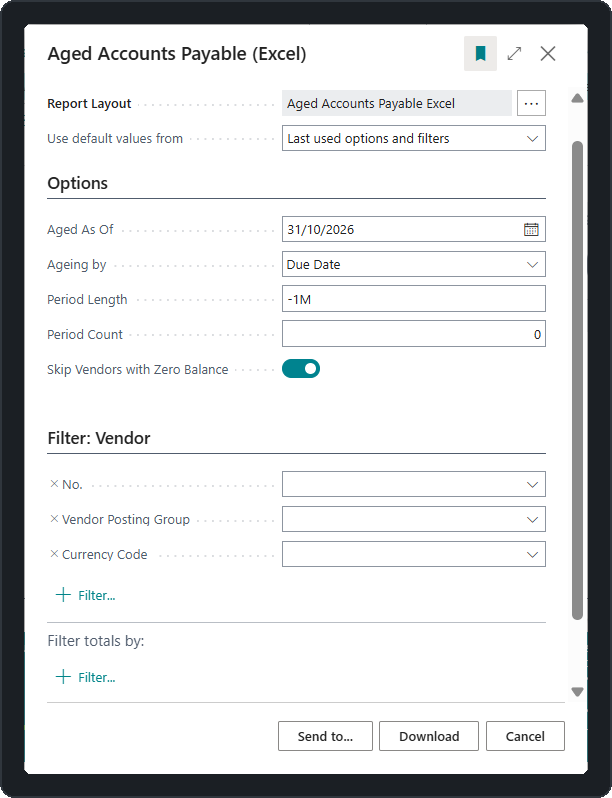 Aged As Of 31/10/2026, ageing by Due Date, Period Length -1M, Period Count 0 (which the report turns into 5).
On 28.5 the report came back empty. Excel shows a single “BLANK / (blank)” row because the pivot has no data at all, and the grand total is 0.00.
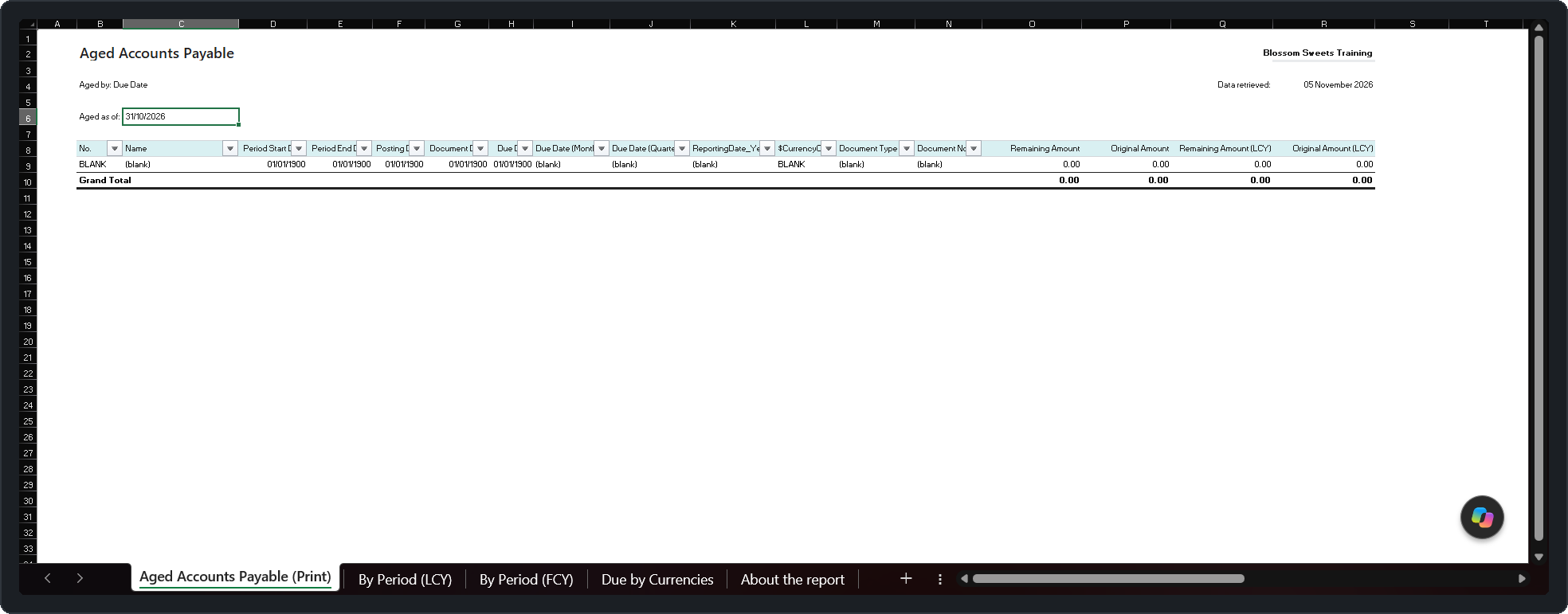 BC 28.5: no entries, grand total 0.00.
On 29.0 the same settings return ten open entries across four vendors, with a grand total of -217,541.00.
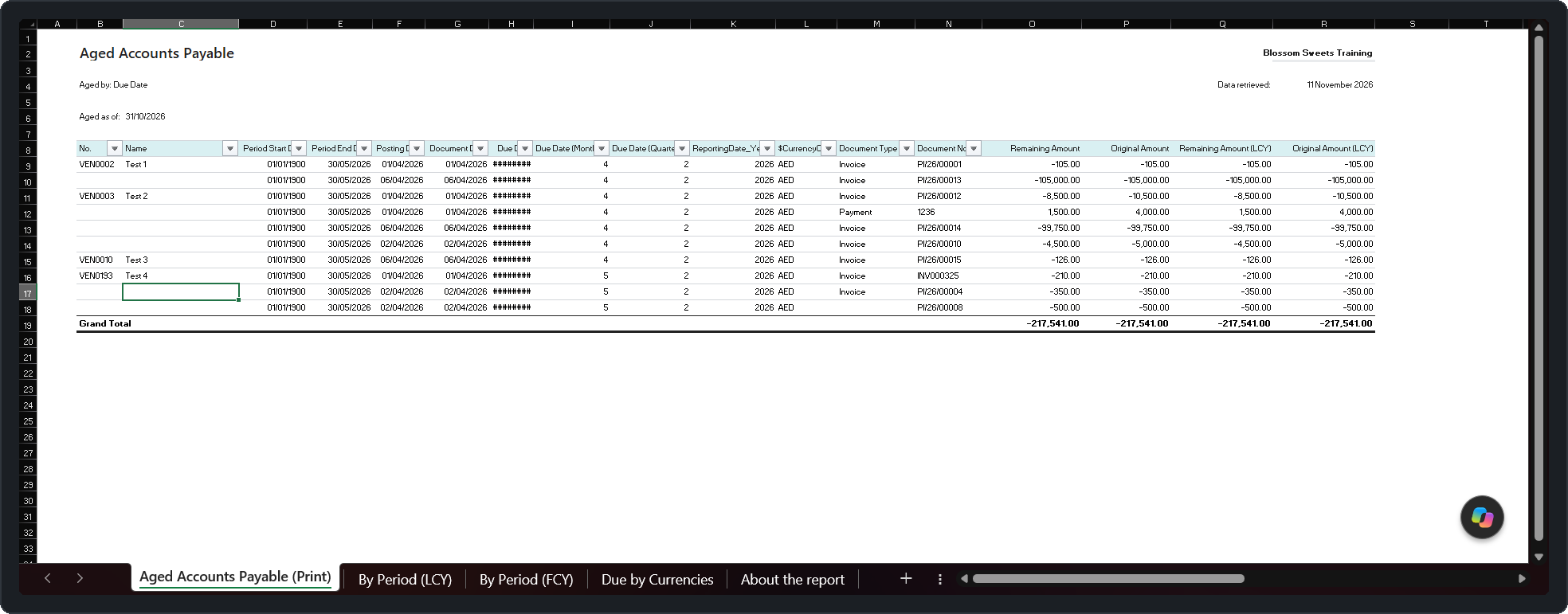 BC 29.0: ten entries, grand total -217,541.00.
The vendors had open invoices the whole time. Version 28.5 simply never put them in the report.
How the Excel report builds its periods
Two request page fields drive the aging buckets.
| Field | Meaning | If left blank |
|---|---|---|
| Period Length | Length of each bucket, as a date formula | -1M |
| Period Count | Number of buckets | 5 (also when set to 0) |
Period Length has to be negative in the Excel report. The code applies the formula straight to the Aged As Of date, so -1M steps back one month at a time. The classic report (322) works differently: you give it a positive 1M and it counts backwards internally. If you type 1M into the Excel report out of habit, the periods run into the future and you get nonsense, with no error message.
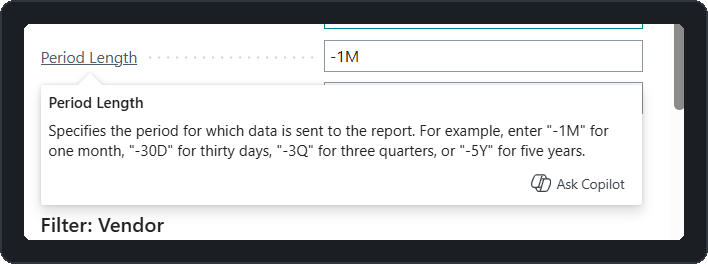 The tooltip gives negative examples for a reason.
With Aged As Of 31/10/2026, -1M and 5 periods, you get these buckets:
| Bucket | Start | End |
|---|---|---|
| 1 | 30/09/2026 | 31/10/2026 |
| 2 | 30/08/2026 | 30/09/2026 |
| 3 | 30/07/2026 | 30/08/2026 |
| 4 | 30/06/2026 | 30/07/2026 |
| 5 | 30/05/2026 | 30/06/2026 |
So the report covers 30/05/2026 to 31/10/2026. The question is what happens to an entry outside that range.
What went wrong in 28.x
Earlier in 2026 the Excel aging reports ignored Period Count. Asking for 3 periods or 12 made no real difference. Microsoft fixed that in July with PR #8953 on main and PR #9203 on the 28.x branch.
To make Period Count count, the fix filtered the ledger entries down to the date range of the selected periods. This is InsertAgingData in report 4403 on the releases/28.5 branch:
EarliestPeriodStart := PeriodStarts.Get(PeriodStarts.Count());
...
case TempEXRAgingReportBuffer."Aged By" of
    TempEXRAgingReportBuffer."Aged By"::"Due Date":
        VendorLedgerEntry.SetRange("Due Date", EarliestPeriodStart, EndingDate);
    TempEXRAgingReportBuffer."Aged By"::"Posting Date":
        VendorLedgerEntry.SetRange("Posting Date", EarliestPeriodStart, EndingDate);
    TempEXRAgingReportBuffer."Aged By"::"Document Date":
        VendorLedgerEntry.SetRange("Document Date", EarliestPeriodStart, EndingDate);
end;
When ageing by Due Date, only entries due between the start of the earliest period and the Aged As Of date are kept. Two groups fall outside that range, and the report has no bucket for either of them, so they are dropped:
flowchart LR
    A[Due before 30/05/2026] --> X[Dropped]
    B[Due 30/05 to 31/10/2026] --> K[Kept]
    C[Due after 31/10/2026] --> X
Entries due before the earliest period are the ones the classic report shows under Before. Entries due after the Aged As Of date are the ones it shows under Not Due. Neither appears in the 28.x Excel output.
In my test company every open invoice was due in April or early May 2026, all before 30/05/2026. Every entry fell into the “older” group, which is why 28.5 returned nothing.
On a live company the result is usually less obvious. Some entries show and others don’t, and the total looks plausible until you compare it with the vendor balance. Credit memos and prepayments with future due dates make it worse, because the missing Not Due amounts can be large and of either sign.
Two smaller problems in the same build
Period End Date. The Period End column in the data sheet could show the Aged As Of date on every row, whatever the Period Start was. Microsoft’s fix description calls these “weird period ends”: the lookup always matched the first date in a descending list.
Skip Vendors with Zero Balance. In 28.x this option does not test whether the vendor has a balance. It tests the vendor’s net change inside the period window:
VendorAgingData.SetAutoCalcFields("Net Change (LCY)");
VendorAgingData.SetRange("Date Filter", FirstStartDate, EndingDate);
if SkipZeroBalanceVendors then
    VendorAgingData.SetFilter("Net Change (LCY)", '<>0');
A vendor whose movements in that window add up to zero is skipped, even if it still has open entries. On 28.x I keep this toggle off.
The fix in version 29
Microsoft fixed this in PR #10412, “Fixes in Excel reports for Aged Accounts” (internal bug AB#642030). It changes both Excel aging reports (EXRAgedAccPayableExcel.Report.al and EXRAgedAccountsRecExcel.Report.al) and the shared EXRAgingReportBuffer.Table.al, and adds about 240 lines of tests.
Three changes matter.
1. A catch-all period for older entries. After building the regular buckets, the report adds one more that starts at 0D:
PeriodStarts.Add(0D);
PeriodEnds.Add(WorkingEndDate);
Since the earliest period start is now 0D, the Posting Date and Document Date filters cover all history.
2. No more Due Date filter. The "Due Date" branch of the case statement is gone, so entries that are not yet due stay in the dataset.
3. Zero balance uses full history. The Date Filter now runs from 0D to the Aged As Of date, so only vendors with an actual zero balance at that date are skipped.
VendorAgingData.SetRange("Date Filter", 0D, EndingDate);
if SkipZeroBalanceVendors then begin
    VendorAgingData.SetAutoCalcFields("Net Change (LCY)");
    VendorAgingData.SetFilter("Net Change (LCY)", '<>0');
end;
In the Excel output, the catch-all bucket shows a Period Start of 01/01/1900. That is how Excel displays BC’s blank date (0D), and it means “from the beginning”. Here it is on CRONUS data in v29, where invoices posted in March land in the bucket ending 30/04/2026:
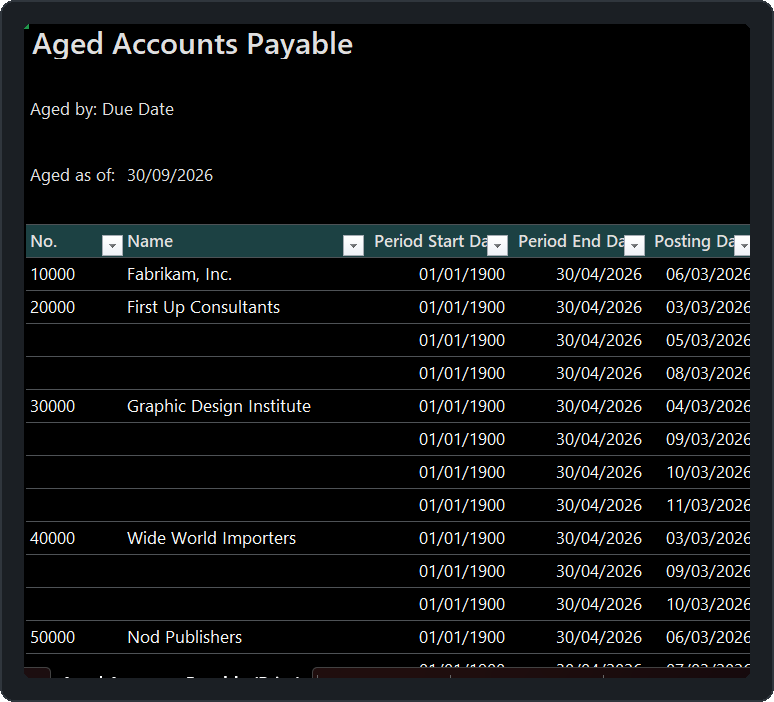 v29: older entries go into a period from 01/01/1900 (blank date) to the start of the earliest regular period.
One thing has not changed. Microsoft’s description of the fix says not-due entries are now included, but they are not put in a separate “Not Due” bucket like the classic report has. The total reconciles, but if you need not-due amounts shown separately, you have to split them out in the Excel layout. The dataset includes the Due Date, so a flag for “Due Date after Aged As Of” in the pivot is enough.
Which versions have the fix
I checked the commit history of the BCApps release branches.
| Branch | July Period Count change | Fix (#10412) |
|---|---|---|
| releases/29.0 | Yes | Yes |
| releases/29.x | Yes | Yes |
| releases/28.5 | Yes | No |
| releases/28.x | Yes | No |
A backport to 28.x (PR #10413) was opened but not merged. Any 28.x build has the cause of the bug and not the fix. The fix arrives with version 29.0.
You won’t find this in the 29.0 What’s New page or the release plans. Those list features, and this is a bug fix, so the GitHub history is the only public record of it.
If you are still on 28.x
Until the tenant is on 29, these are the options I use:
- Use the classic Aged Accounts Payable / Receivable report for anything that has to reconcile. It still has proper Not Due and Before columns.
- If you want the Excel version, run it by Posting Date, set Period Count high enough to cover your oldest open entry (24 or 36 monthly periods is usually safe), and turn Skip Vendors with Zero Balance off. Posting dates are never after the Aged As Of date, so nothing gets cut on the not-due side, and enough periods cover the older side. You lose due-date aging, but the total matches the balance.
- Whatever you choose, check the grand total against the vendor (or customer) balance at the same date before relying on the report.
After moving to 29, rerun the report by Due Date for a date you have already reconciled, and confirm the total matches.
References
- Aged Accounts Payable Excel (report 4403)
- Aged Accounts Receivable Excel (report 4402)
- Aged Accounts Payable (report 322, obsolete)
- PR #10412: Fixes in Excel reports for Aged Accounts (the fix, in 29.0)
- PR #10413: 28.x backport of the fix (not merged)
- PR #8953: Period Count change on main
- PR #9203: Period Count change on 28.x
- microsoft/BCApps repository