Deferrals in Business Central: Templates, Purchases, Sales, Journals and Reports
How deferrals work in Business Central: setting up a deferral template, using it on purchase invoices, sales invoices and general journal lines, reading the G/L entries it creates, and checking balances with the Deferral Summary reports.
You pay 12,000 of rent up front for a year. You shouldn’t book the whole 12,000 as rent expense in the month you pay it. The cost belongs to the next twelve months, so it should go to a prepaid account first and move to rent expense 1,000 at a time. Revenue works the same way the other round: a customer pays a year in advance, and you earn it month by month.
That’s what deferrals in Business Central do. You attach a deferral template to a purchase, sales or journal line, and Business Central posts the amount to a balance sheet account and then releases it to the income statement over the periods you choose. No recurring journals, no reminders to post the monthly entry.
I made a video walkthrough of all of this, and this post is the written version with screenshots from it.
How a deferral works
Think of the deferral account as a piggy bank. The full amount goes in on the posting date, and a fixed share comes out every month until it’s empty.
| Expense (prepaid) | Revenue (deferred) | |
|---|---|---|
| Example | 12,000 annual rent paid up front | 12,000 management fee billed up front |
| Deferral account | An asset, such as Prepaid Rent | A liability, such as Deferred Revenue |
| On the posting date | Debit Prepaid Rent, credit Vendor | Debit Customer, credit Deferred Revenue |
| Every month after | Debit Rent expense, credit Prepaid Rent | Debit Deferred Revenue, credit Revenue |
You don’t post these entries yourself. Business Central creates all of them, including the twelve monthly ones, when you post the document.
Step 1: Create a deferral template
Search for Deferral Templates. These are the four I use in the video:
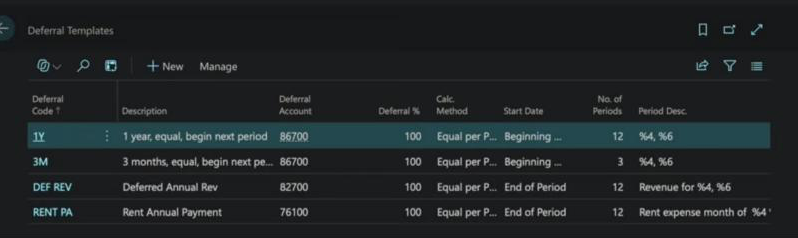
Open one, or choose New. This is the rent template:
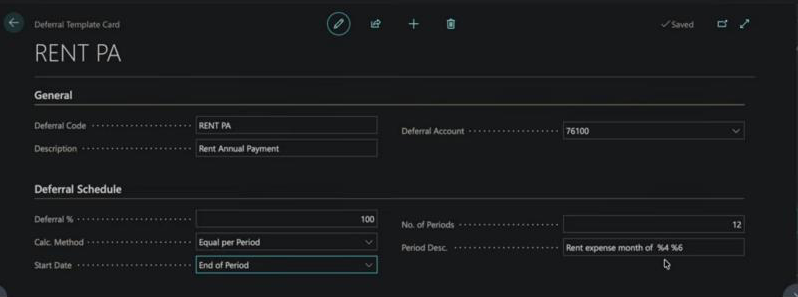
| Field | RENT PA |
|---|---|
| Deferral Code | RENT PA |
| Description | Rent Annual Payment |
| Deferral Account | 76100 Prepaid Rent |
| Deferral % | 100 |
| Calc. Method | Equal per Period |
| Start Date | End of Period |
| No. of Periods | 12 |
| Period Desc. | Rent expense month of %4 %6 |
- Deferral Code is what you pick on document lines, so make it recognisable.
- Deferral Account holds the amount until it’s released. Use an asset account for expenses (Prepaid Rent, Prepaid Insurance) and a liability account for revenue (Deferred Revenue).
- Deferral % is how much of the line to defer. At 100 the whole amount is spread. At 50, half of a 12,000 line is expensed straight away and the other 6,000 is spread at 500 a month.
- No. of Periods is 12 for an annual payment, 3 for a quarter, and so on.
Calc. Method
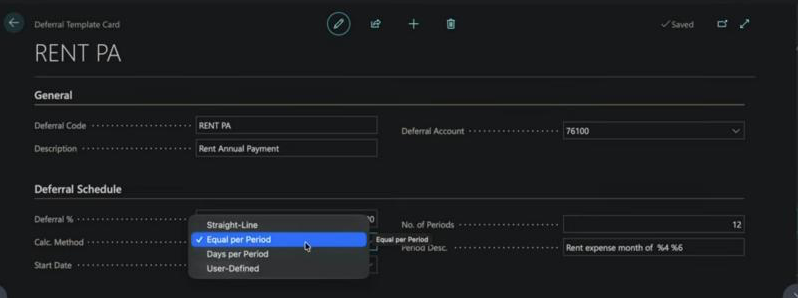
- Straight-Line: splits the amount by the number of periods, adjusted for period length. A first period that starts partway through a month gets less, the full months in between get equal amounts, and the last one is based on the days left.
- Equal per Period: the same amount in every period. 12,000 over 12 periods is 1,000 a month.
- Days per Period: by the number of days in each period, so a 31-day month gets more than a 30-day one.
- User-Defined: nothing is calculated. You type the amount for each period on the deferral schedule.
The easiest way to see the difference is to try them: change the method on the deferral schedule (step 2), choose Calculate Schedule and look at the amounts.
Start Date
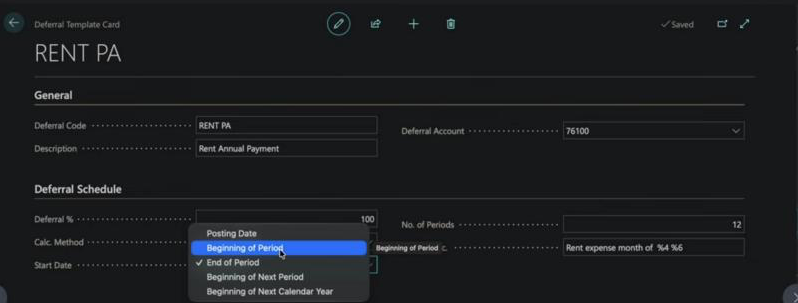
- Posting Date: the first period starts on the document’s posting date.
- Beginning of Period: the first day of the accounting period the posting date falls in.
- End of Period: the last day of that accounting period, for example 30 November.
- Beginning of Next Period: the first day of the following period. Use this when the service only starts next month.
- Beginning of Next Calendar Year: 1 January of the next year.
“Period” here means the accounting periods set up on the Accounting Periods page.
Period Desc. placeholders
Don’t type a month and year into Period Desc. If you write “Rent expense November 2026”, every one of the twelve entries says November 2026. Use the placeholders instead, and Business Central fills them in from each entry’s posting date:
| Code | Replaced with |
|---|---|
| %1 | Day number |
| %2 | Week number |
| %3 | Month number |
| %4 | Month name |
| %5 | Accounting period name |
| %6 | Fiscal year |
“Rent expense month of %4 %6” becomes Rent expense month of December 2026, then January 2027, and so on. The year matters: a schedule that starts in November runs into the next year, so a hard-coded 2026 would be wrong for most of the entries.
Step 2: Defer an expense on a purchase invoice
Create the purchase invoice as usual. In the video it’s invoice 107222 from Fabrikam, posting date 14-11-2026, with one line on G/L account 30110 Rent / Leases for 12,000.
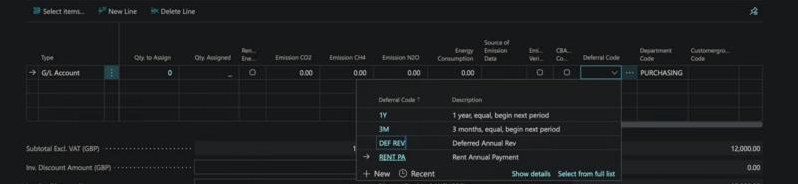
The only extra step is the Deferral Code on the line. Scroll right to find it and choose RENT PA:
Choose the … next to the deferral code to open the Deferral Schedule for that line:
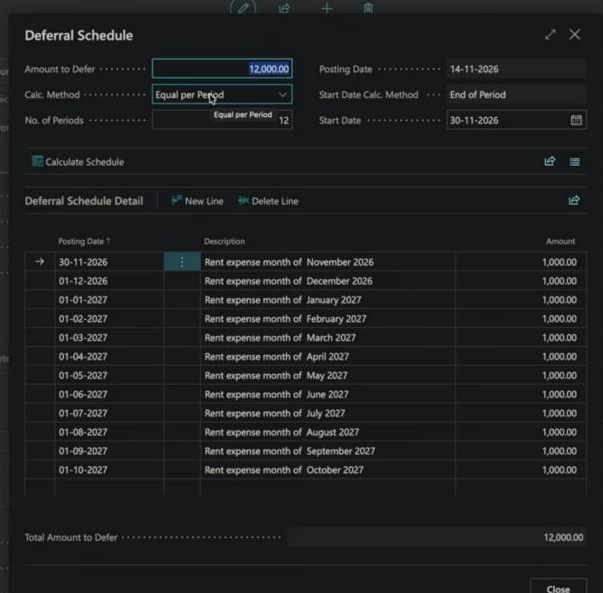
The template only provides defaults. On this page you can still change the calculation method, the number of periods and the start date for this one line, then choose Calculate Schedule to rebuild the lines. You can also edit the date or amount of any line, or add and delete lines. The Total Amount to Defer at the bottom has to match what you’re deferring.
Watch the dates with End of Period
Look at the posting dates in the schedule above. The first line is 30-11-2026, the end of November, but every line after it is on the 1st of the month: 01-12-2026, 01-01-2027 and so on. With End of Period, only the first line lands on the last day of the month. I treat this as a known issue. If your client expects every entry on the last day of the month, change the dates on the schedule by hand before you post.
Step 3: Check the G/L entries
Run Preview Posting and sort the G/L entries by posting date. Here the start date was moved to 31-12-2026, so recognition starts in December:
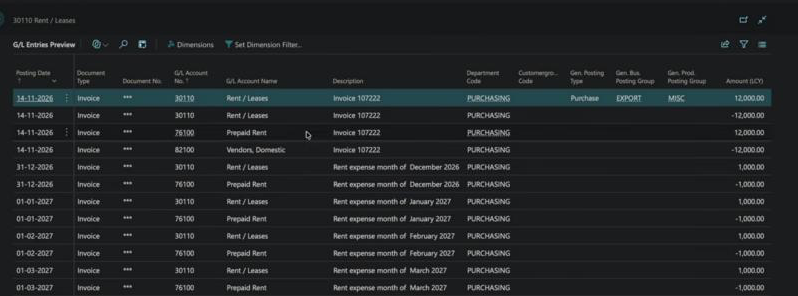
| Date | G/L Account | Debit | Credit | Note |
|---|---|---|---|---|
| 14-11-2026 | 30110 Rent / Leases | 12,000 | Invoice line | |
| 14-11-2026 | 30110 Rent / Leases | 12,000 | Out of expense | |
| 14-11-2026 | 76100 Prepaid Rent | 12,000 | Into prepaid | |
| 14-11-2026 | 82100 Vendors, Domestic | 12,000 | Owed to vendor | |
| 31-12-2026 | 30110 Rent / Leases | 1,000 | December rent | |
| 31-12-2026 | 76100 Prepaid Rent | 1,000 | Released | |
| 01-01-2027 | 30110 Rent / Leases | 1,000 | January rent | |
| 01-01-2027 | 76100 Prepaid Rent | 1,000 | Released | |
| … | 12 pairs in all |
The two 12,000 entries on Rent / Leases cancel out. On the posting date, the net effect is just debit Prepaid Rent, credit Vendor: nothing hits the income statement yet. After that, each month moves 1,000 from Prepaid Rent to Rent / Leases. Their descriptions come from the template: Rent expense month of December 2026, January 2027 and so on.
Step 4: Defer from a general journal
If you don’t use the purchase module for something like this, you can do the same from a General Journal: one line debiting the expense account, one crediting the vendor (or use a balancing account on one line).
People often ask which line gets the deferral code. Only the income statement line: the expense here, the revenue for a sale. Think of the purchase invoice: the vendor is on the header and the deferral code sits on the expense line. A journal works the same way. You defer the expense, not the payable.
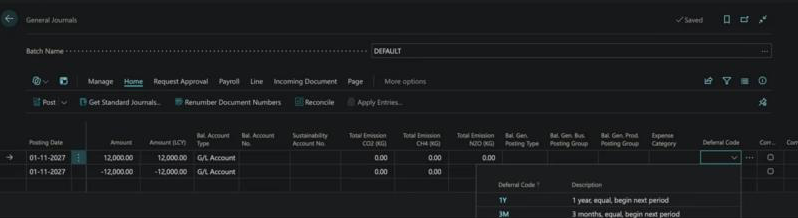
The … next to the deferral code opens the same Deferral Schedule. The G/L entries follow the same pattern: rent to vendor, rent moved to prepaid, then a monthly entry from prepaid to rent for twelve months. Your accounting periods have to cover the whole schedule. In the video Business Central complained when I picked the deferral code, because my accounting periods didn’t go far enough into the future.
Step 5: Defer revenue on a sales invoice
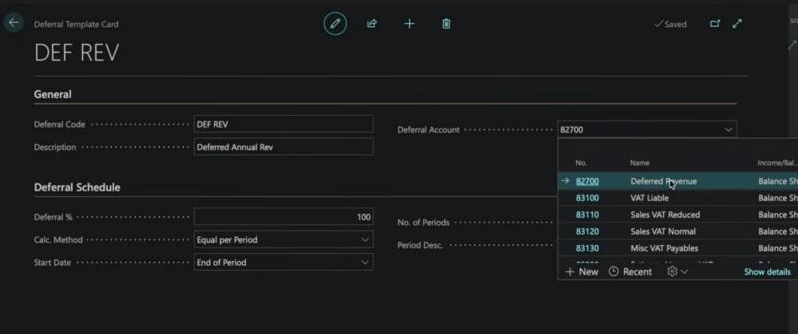
Revenue needs its own template, because the deferral account is a liability. Here it’s DEF REV, with deferral account 82700 Deferred Revenue. Everything else is the same as the rent template, with “Revenue for %4, %6” as the period description:
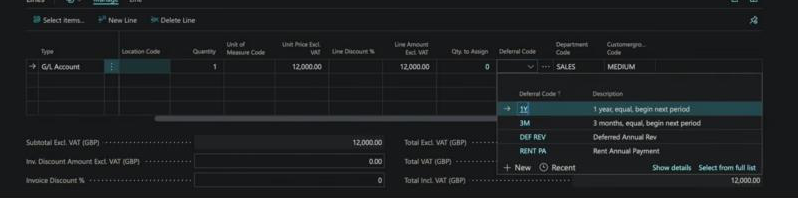
On the sales invoice (102205 for Relecloud in the video), put the deferral code on the revenue line, here G/L account 10320 Management Fee Revenue for 12,000. The receivable is on the header, and there’s no deferral code there:
Preview Posting shows the mirror image of the purchase:
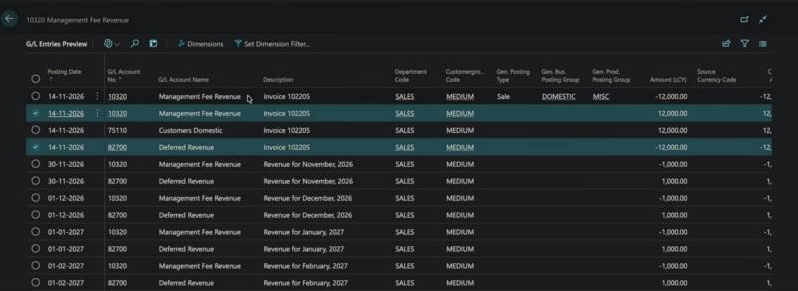
| Date | G/L Account | Debit | Credit | Note |
|---|---|---|---|---|
| 14-11-2026 | 10320 Mgmt Fee Revenue | 12,000 | Invoice line | |
| 14-11-2026 | 10320 Mgmt Fee Revenue | 12,000 | Out of revenue | |
| 14-11-2026 | 75110 Customers Domestic | 12,000 | Receivable | |
| 14-11-2026 | 82700 Deferred Revenue | 12,000 | Into deferred | |
| 30-11-2026 | 10320 Mgmt Fee Revenue | 1,000 | November revenue | |
| 30-11-2026 | 82700 Deferred Revenue | 1,000 | Released | |
| 01-12-2026 | 10320 Mgmt Fee Revenue | 1,000 | December revenue | |
| 01-12-2026 | 82700 Deferred Revenue | 1,000 | Released | |
| … | 12 pairs in all |
The monthly entries carry the template’s description, such as Revenue for November, 2026.
On the posting date, the net effect is debit Receivable, credit Deferred Revenue, and no revenue is recognised. Each month after that moves 1,000 from Deferred Revenue to Management Fee Revenue until the 12,000 is used up. The same End of Period date pattern applies: 30-11-2026, then the 1st of each month.
Revenue can be deferred from a general journal too. Same rule: the deferral code goes on the revenue line, not on the receivable line.
Step 6: Check deferred balances with the reports
Once you’ve posted, the next question is how much is still sitting in the deferral accounts. Search for deferral:
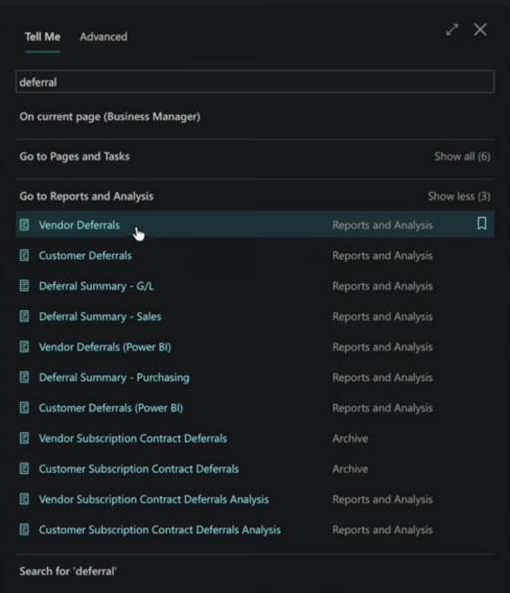
| Report | Use it for |
|---|---|
| Deferral Summary - G/L | Deferrals posted from general journals |
| Deferral Summary - Sales | Deferrals posted from sales documents |
| Deferral Summary - Purchasing | Deferrals posted from purchase documents |
| Customer Deferrals / Vendor Deferrals | Deferrals by customer or vendor |
The subscription contract deferral reports belong to Subscription Billing, which is a separate module.
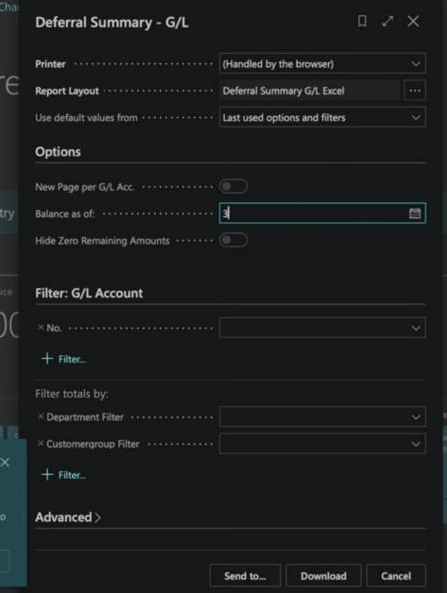
The summary reports are Excel layouts, so you set the Balance as of date and choose Download:
In the video I had posted two 12,000 management fee deferrals from the general journal. With Balance as of 31-12-2026:
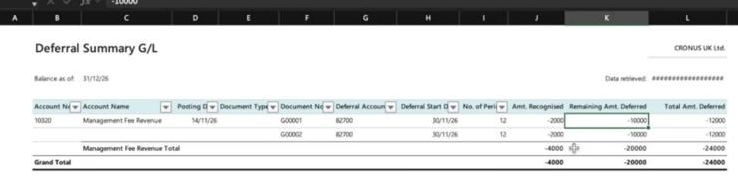
Both use deferral account 82700, start on 30-11-2026 and run for 12 periods:
| Document | Recognised | Remaining | Total Deferred |
|---|---|---|---|
| G00001 | 2,000 | 10,000 | 12,000 |
| G00002 | 2,000 | 10,000 | 12,000 |
| Total | 4,000 | 20,000 | 24,000 |
Two months (November and December) have been recognised on each contract, and 20,000 is still deferred. The amounts show as negatives in the file because revenue is a credit. This is the report I’d give a client or auditor to reconcile the Deferred Revenue balance.
Summary
- Deferral Templates: set the deferral account, %, calc. method, start date, number of periods, and a period description with %4 %6.
- Invoice or journal line: put the Deferral Code on the income statement line only.
- Deferral Schedule (…): check the dates and amounts, adjust them, and choose Calculate Schedule.
- Preview Posting: expect a net prepaid-to-vendor (or receivable-to-deferred-revenue) entry, then one pair of entries per period.
- Deferral Summary reports: reconcile what’s recognised against what’s still deferred.