Item Journal and Requisition Worksheet Approval Templates Missing in Business Central? Here's the Fix
The new Item Journal Batch and Requisition Worksheet Batch approval workflow templates don't show up in upgraded Business Central companies. The fix is a hidden action called Reset Microsoft Templates.
Business Central 2026 release wave 1 (v28) added approval workflows for item journals and requisition/planning worksheets. You can now require approval before someone posts an inventory adjustment or turns requisition lines into purchase orders.
The setup steps from Microsoft are short. Open Workflows, choose New Workflow from Template, and pick either:
- Item Journal Batch Approval Workflow, or
- Requisition Worksheet Batch Approval Workflow
When I tried this in a v29 production company, neither template was in the list. I could see General Journal Batch, Sustainability Journal Batch, all the purchase and sales document templates, and nothing under Inventory or Planning.
This post covers why that happens and how to fix it.
What’s covered by the new feature
Approvals now work on these journals at batch level:
- Item Journal
- Physical Inventory Journal
- Output Journal
- Consumption Journal
They also work on requisition and planning worksheets at worksheet batch level.
While an approval request is open, nobody can edit, delete or post the batch. You get the usual Send Approval Request, Approve, Reject and Delegate actions on the journal and worksheet pages.
Why the templates are missing
Workflow templates aren’t read from code at runtime. They are records stored in each company, the ones whose codes start with MS-. Business Central creates them when workflows are first set up in a company.
When a company is upgraded to a version that brings new templates, those new records don’t always get added. The feature’s code is present, but the template rows aren’t. So your template list reflects whatever existed the last time it was built.
The fix: Reset Microsoft Templates
Business Central has an action that rebuilds all the Microsoft templates. It’s easy to miss because the action bar on Workflow Templates only shows New and Manage by default. The reset is hidden under More options.
You can get there in either of two ways:
- Press Alt+Q, search for Workflow Templates, and open the page. Or go to Workflows → New Workflow from Template, which opens the same page.
- In the action bar, click More options.
- Click Actions → Reset Microsoft Templates.
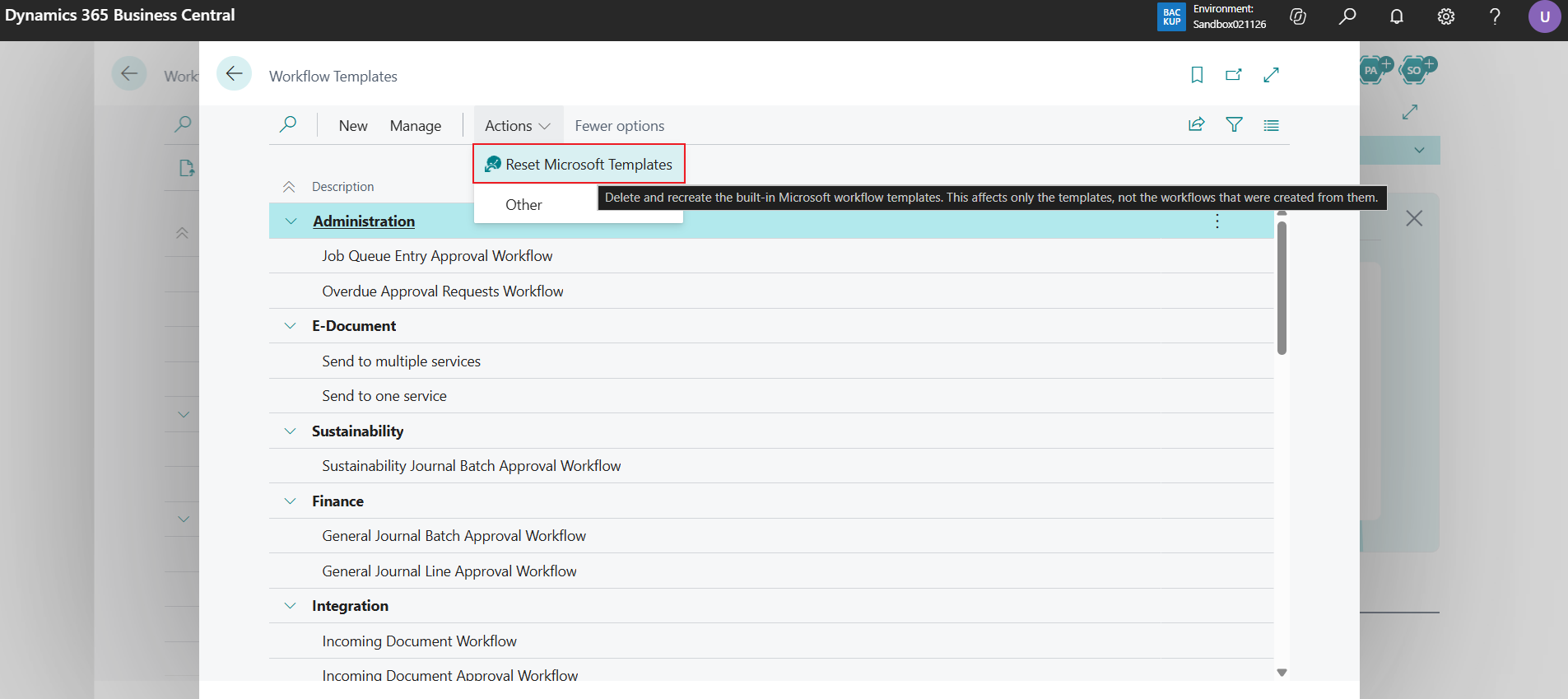
The action’s tooltip describes what it does: “Delete and recreate the built-in Microsoft workflow templates. This affects only the templates, not the workflows that were created from them.”
After the reset, go back to Workflows → New Workflow from Template. The Item Journal Batch and Requisition Worksheet Batch approval templates should now appear in the list.
Before you click it
Read this first, especially in production.
- The reset applies to all
MS-templates at once. You can’t reset a single template. - If someone edited a Microsoft template directly instead of copying it, those edits are lost. Export anything you want to keep first.
- Your workflows, open approval entries and approval user setup are separate records. The reset only rebuilds the templates.
- If this is a client’s live company, get the usual sign-off. It’s a small change, but it’s still a configuration change in production.
If it still doesn’t work
- Check the version. Under Help & Support, confirm the application version is 28 or later, not only the platform version.
- Check the events. Create a blank workflow and open the When Event lookup. If you see no item journal batch or requisition worksheet batch events, the feature isn’t active in your environment. Look for a customized base app, or a localization or ISV app that replaces workflow setup.
- Use a clean company. Create a new company in a sandbox on the same version, build the workflow there from the template, use Export to File, then Import from File in your real company.
Setting up the workflow
Once the template is available:
- Create a workflow from the template.
- In the event conditions, set the journal template and batch name the workflow applies to.
- Set the approvers in the response options and check your Approval User Setup.
- Turn on Enabled.
- Open the journal or worksheet and use Send Approval Request.
- Follow the status in Approval Entries.
Reference
- Approve requisition worksheets and item journals — 2026 release wave 1 plan
- Create workflows from workflow templates — Microsoft Learn
If this helped, I cover more Business Central setup issues like this on my YouTube channel, Business Central with Rupesh.