Order-to-Cash in Business Central: Sales Order to Customer Payment
A walkthrough of the Order-to-Cash cycle in Business Central: create a sales order, ship it in batches, invoice what has shipped, receive the customer's payment in a cash receipt journal, apply it to the invoices and check that everything is closed.
Order-to-Cash (O2C) is the path a sale takes from the moment a customer orders to the moment their money is in your account. In Business Central it comes down to four documents:
Sales Order → Sales Shipment → Sales Invoice → Customer Payment
This post walks through all of it with one order: 10 desks for Adatum Corporation, shipped in three batches, invoiced twice and paid in one payment. Everything was posted in a CRONUS UK company on Business Central 29.1.
There’s also a video version:
Step 1: Create the sales order
Search for Sales Orders and choose New. Fill in:
- Customer Name: 10000 Adatum Corporation
- Posting Date: 18-11-2026
- One line: Item 1896-S ATHENS Desk, Quantity 10, unit price 649.40
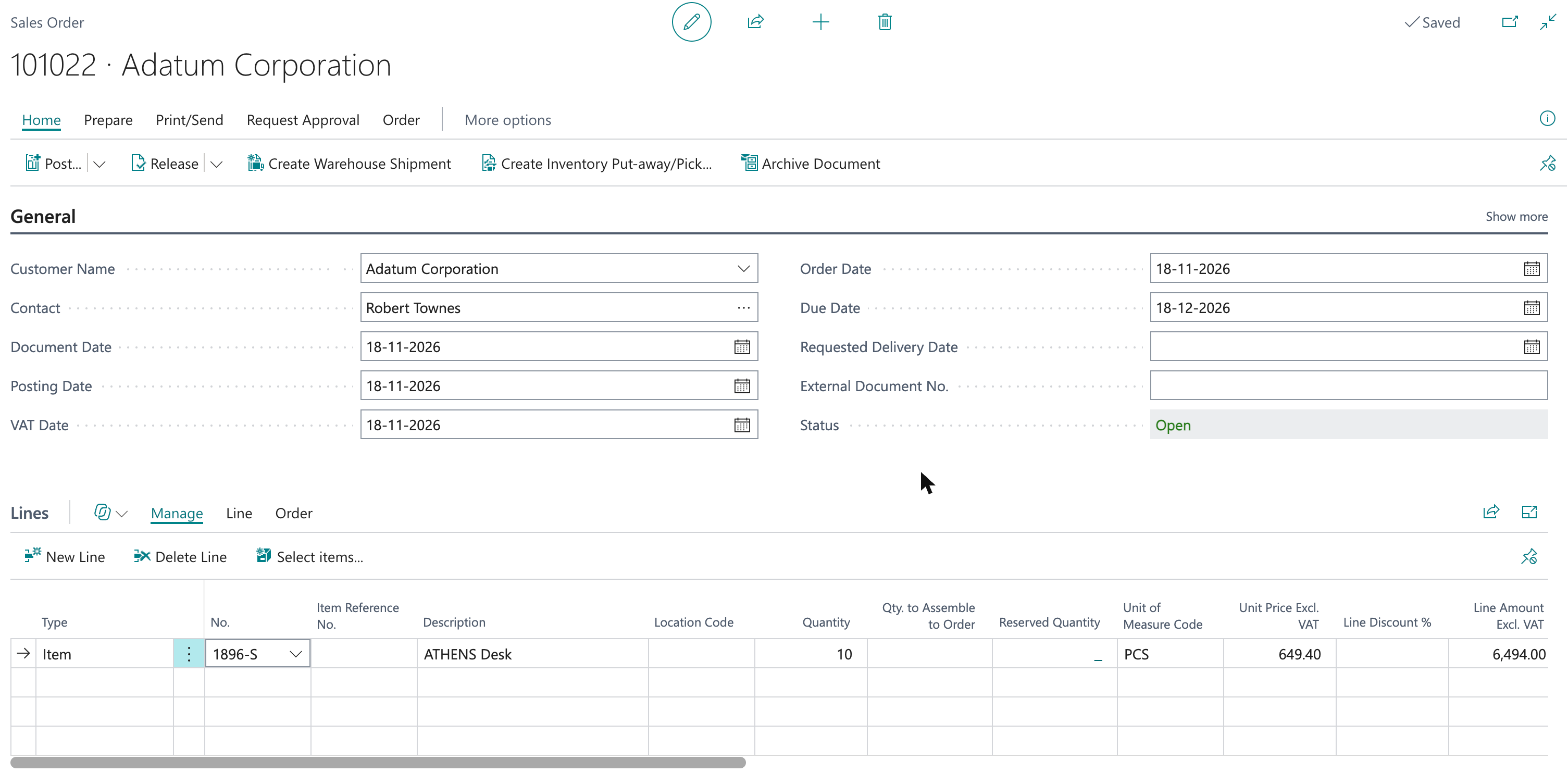
The order is 6,494.00 excluding VAT. Nothing has been posted yet: a sales order is just an agreement until you ship or invoice it.
Step 2: Ship in batches
You don’t have to ship the whole order at once. Scroll right on the line to the quantity columns:
| Column | What it means |
|---|---|
| Qty. to Ship | What the next posting will ship |
| Quantity Shipped | What has already been shipped |
| Qty. to Invoice | What the next posting will invoice |
| Quantity Invoiced | What has already been invoiced |
Set Qty. to Ship to 5. Business Central sets Qty. to Invoice to 5 as well:


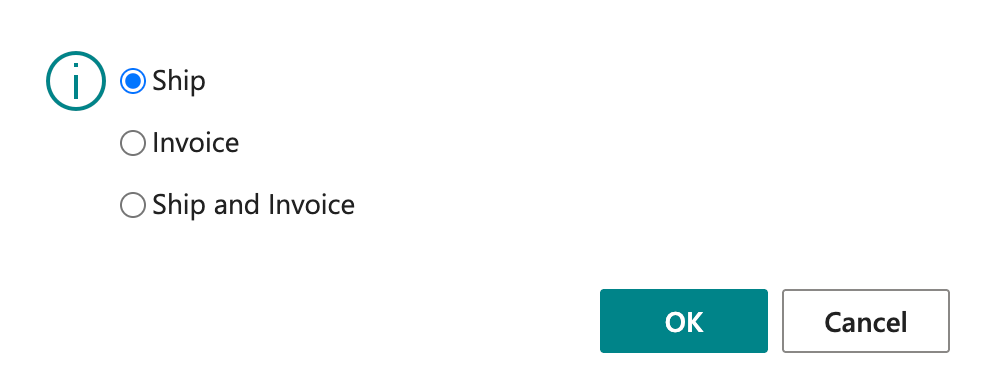
Choose Post… and pick Ship:
| Option | What it posts |
|---|---|
| Ship | A posted shipment: items leave inventory, no bill yet |
| Invoice | A posted invoice for what has shipped |
| Ship and Invoice | Both at once |
Then do it again with Qty. to Ship = 2. After the second shipment the line looks like this:


Seven are shipped and three are still to go. The order status changed to Released when the first shipment posted.
Step 3: Invoice what has shipped
Look at Qty. to Invoice in the screenshot above: it says 10, even though only 7 have shipped. That’s fine. Choose Post… → Invoice, and Business Central only invoices what has actually shipped. You can’t invoice something from a sales order before it’s been shipped.


Quantity Invoiced is now 7, and Qty. to Invoice dropped to the 3 that are left. The two shipments (5 and 2) were billed on one invoice, 103299. A customer gets one bill for several deliveries.
Step 4: Ship and invoice the rest
For the last 3, choose Post… → Ship and Invoice. Business Central posts the shipment and the invoice together:
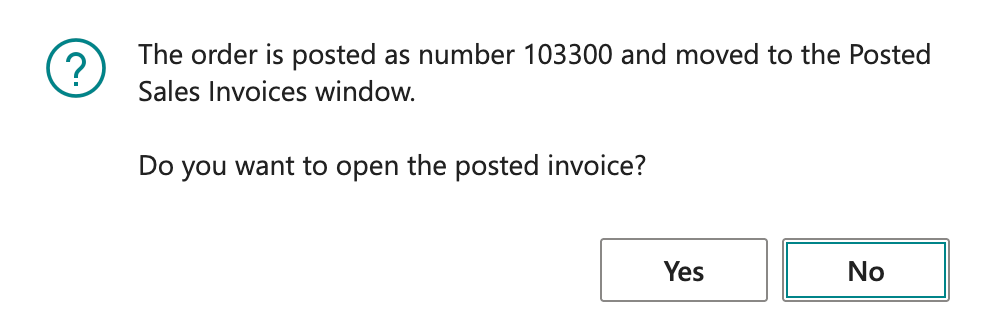
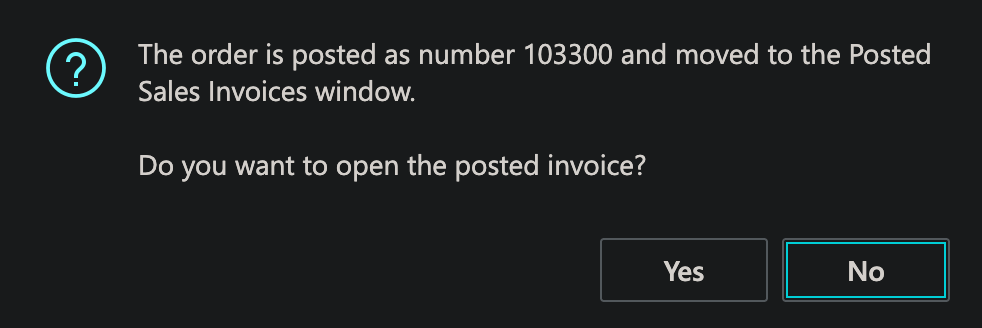
Once every line is fully shipped and invoiced, the sales order is removed from the Sales Orders list. The history lives in the posted documents. If you want to keep a copy of the order itself, turn on Archive Orders on the Sales & Receivables Setup page.
Here is what the order produced. Three posted shipments:


And two posted invoices, both still unpaid:


| Document | Quantity | Amount | Incl. VAT (20%) |
|---|---|---|---|
| Shipment 102300 | 5 | ||
| Shipment 102301 | 2 | ||
| Shipment 102302 | 3 | ||
| Invoice 103299 (shipments 1 + 2) | 7 | 4,545.80 | 5,454.96 |
| Invoice 103300 (shipment 3) | 3 | 1,948.20 | 2,337.84 |
| Total | 10 | 6,494.00 | 7,792.80 |
Step 5: Receive the payment
Adatum pays both invoices at once. Search for Cash Receipt Journals. You could use any general journal, but the cash receipt journal is the one made for incoming payments.
Fill in the line:
- Posting Date: 18-11-2026
- Document Type: Payment
- Account Type: Customer
- Account No.: 10000
- Bal. Account Type / Bal. Account No.: G/L Account 78200, already set on the batch. Use a bank account here if the money went into the bank.
Leave Amount empty, and choose Apply Entries.
Apply the payment to the invoices
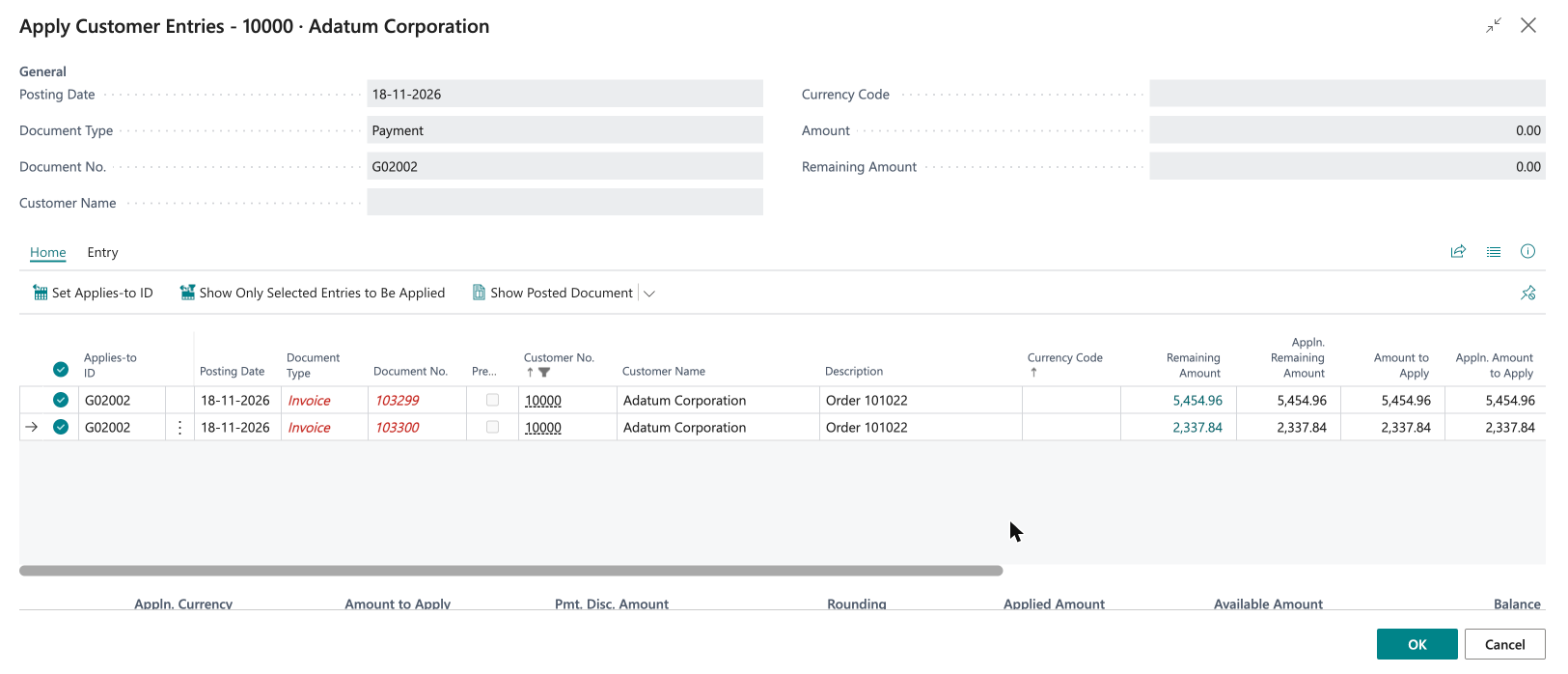
Apply Customer Entries lists the customer’s open entries. Select both invoices and choose Set Applies-to ID. Each gets the payment’s document number, G02002, as its Applies-to ID:
Choose OK. The journal fills in the amount for you:


The amount is -7,636.94, not the 7,792.80 the invoices add up to. The difference, 155.86, is a 2% payment discount. Adatum’s payment terms give 2% if they pay within 8 days, and the payment discount date on both invoices is 26-11-2026. The payment is dated 18-11-2026, so Business Central takes the discount automatically.
If the customer pays the full amount anyway, set Remaining Pmt. Disc. Possible to 0 on the applied entries, and the journal amount becomes the full 7,792.80.
Preview and post
Post → Preview Posting → G/L Entry:


| G/L Account | Debit | Credit | What it is |
|---|---|---|---|
| 78200 Business account | 7,636.94 | Money received | |
| 10910 Discounts and Allowances | 155.86 | 2% payment discount given | |
| 75110 Customers Domestic | 7,792.80 | Receivable cleared in full | |
| Total | 7,792.80 | 7,792.80 |
The receivable is cleared in full. The customer paid 7,636.94 in cash, and the 155.86 discount is an expense. Without a payment discount, there would be just two lines: debit the cash or bank account, credit the customer. Then Post the journal.
Step 6: Check that everything is closed
Back on Posted Sales Invoices, the Remaining Amount on both invoices is now 0.00:


The Customer Ledger Entries show the same from the customer’s side: both invoices and the payment, each with nothing remaining.


The payment’s Original Amount is -7,636.94 (the cash), and its Amount is -7,792.80. That’s because the payment discount is posted as part of the payment’s detailed entries. That’s how one payment of 7,636.94 closes 7,792.80 of invoices.
The whole cycle
| Step | Where | Result |
|---|---|---|
| 1 | Sales Order | Order 101022 for 10 desks |
| 2 | Post → Ship (twice) | 7 shipped |
| 3 | Post → Invoice | 7 invoiced on one invoice |
| 4 | Post → Ship and Invoice | Last 3 done, order removed |
| 5 | Cash Receipt Journal | Paid, 2% discount taken |
| 6 | Ledger entries | Everything closed |