Procure-to-Pay in Business Central: Purchase Order to Vendor Payment
A walkthrough of the Procure-to-Pay cycle in Business Central: create a purchase order, receive it in two batches, post one vendor invoice for both receipts, pay it with Suggest Vendor Payments and check that the invoice is closed.
Procure-to-Pay (P2P) is the path a purchase takes from the moment you order from a vendor to the moment you pay them. It’s the purchase-side mirror of Order-to-Cash. In Business Central it comes down to four documents:
Purchase Order → Purchase Receipt → Purchase Invoice → Vendor Payment
This post walks through it with one order: 10 desks from Fabrikam, Inc., received in two batches, invoiced once and paid from the payment journal. Everything was posted in a CRONUS UK company on Business Central 29.1. The order, receipts and invoice are dated 19-11-2026, and the payment 30-11-2026, the invoice’s due date.
Step 1: Create the purchase order
Search for Purchase Orders and choose New. Fill in:
- Vendor Name: 10000 Fabrikam, Inc.
- Posting Date: 19-11-2026
- One line: Item 1896-S ATHENS Desk, Quantity 10, Direct Unit Cost 550.00
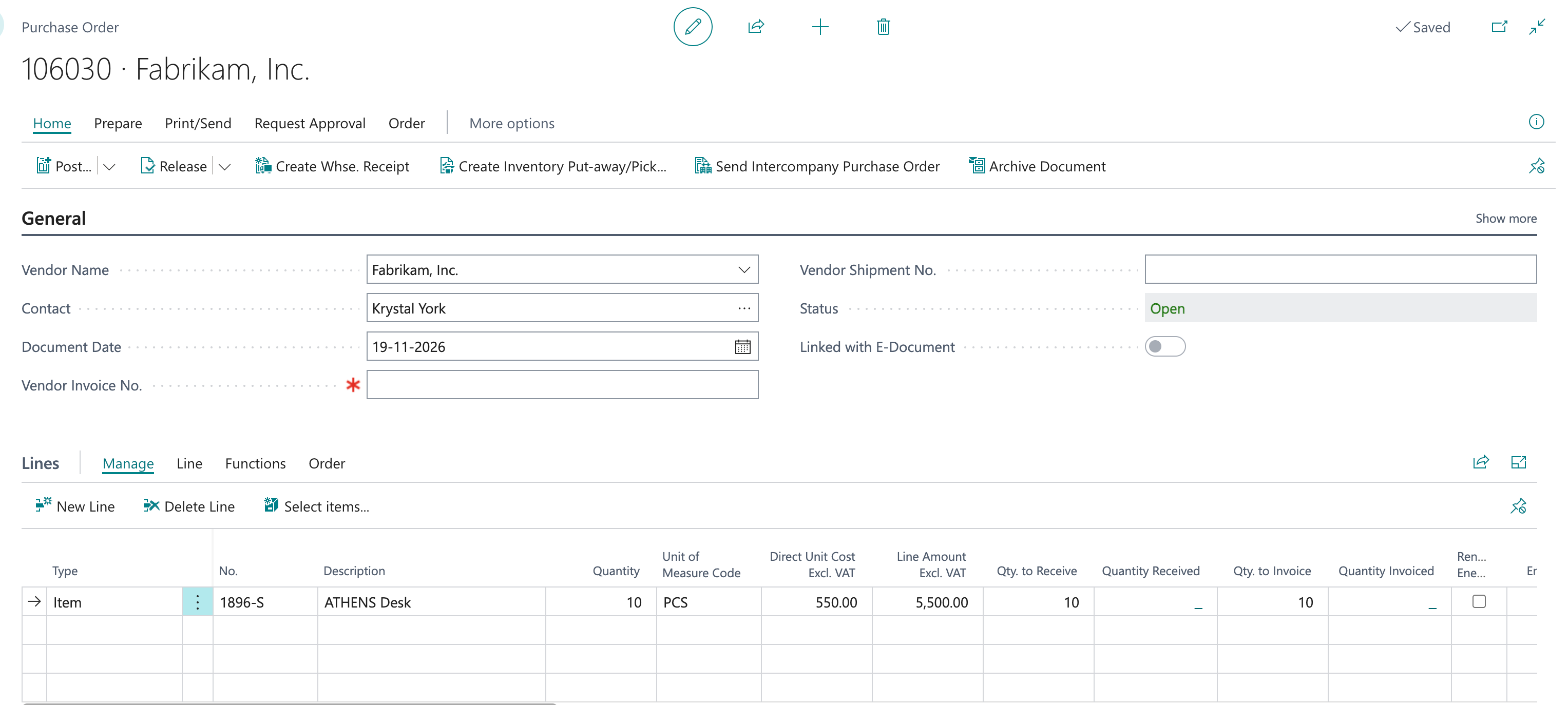
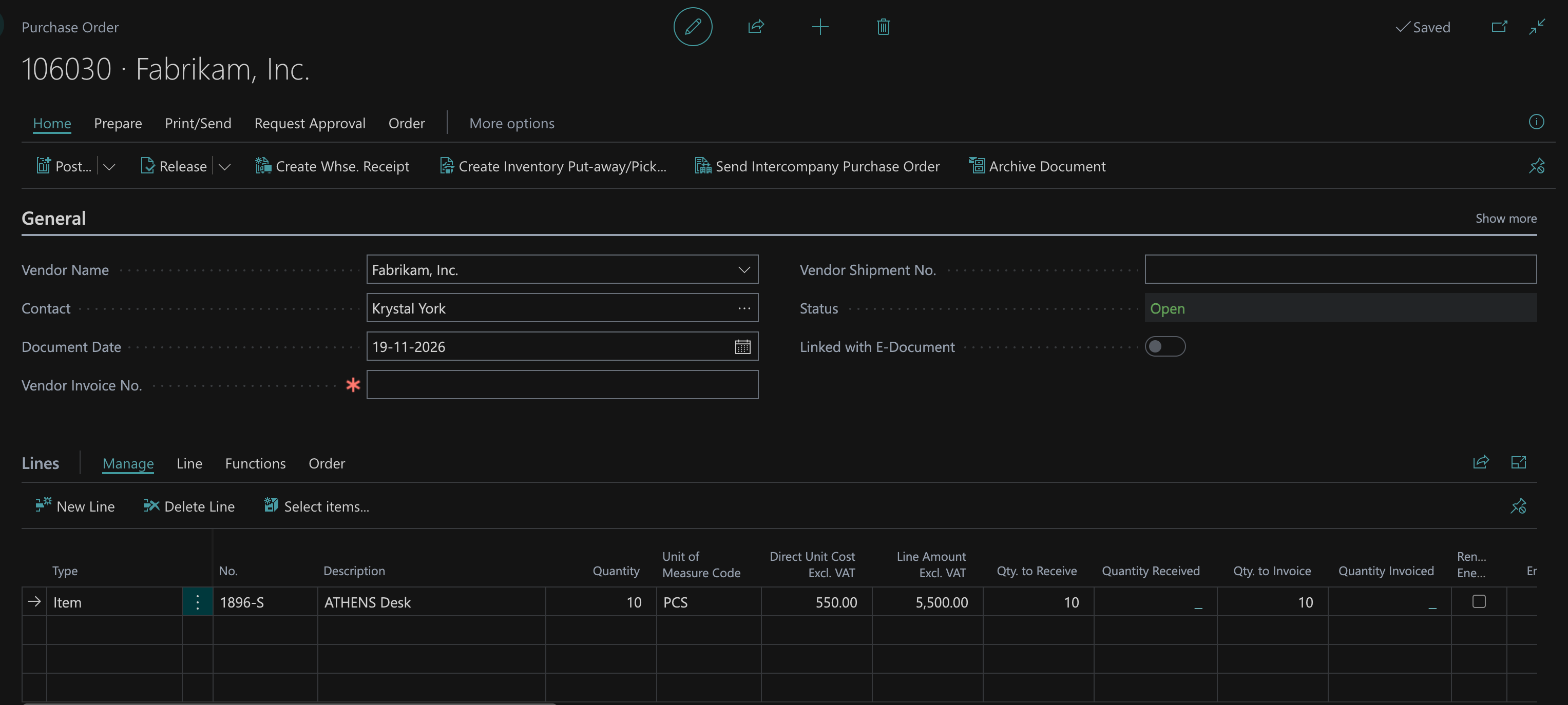
The order is 106030, for 5,500.00. Fabrikam is a US vendor set up without VAT on this line, so the amount excluding VAT and the amount including VAT are the same. The Due Date of 30-11-2026 comes from the vendor’s payment terms.
Leave Vendor Invoice No. empty for now. You don’t have the vendor’s invoice yet, and you don’t need it to receive. You do need it to invoice: by default, Ext. Doc. No. Mandatory is turned on in Purchases & Payables Setup, and Business Central won’t post a purchase invoice without the vendor’s own invoice number. That stops the same vendor invoice from being entered twice.
Scroll right on the line to the quantity columns:
| Column | What it means |
|---|---|
| Qty. to Receive | What the next posting will receive |
| Quantity Received | What has already been received |
| Qty. to Invoice | What the next posting will invoice |
| Quantity Invoiced | What has already been invoiced |
Nothing has been posted yet. A purchase order is just a commitment until you receive or invoice it.
Step 2: Receive the first 6
Fabrikam delivers 6 desks. Set Qty. to Receive to 6, choose Post… and pick Receive:
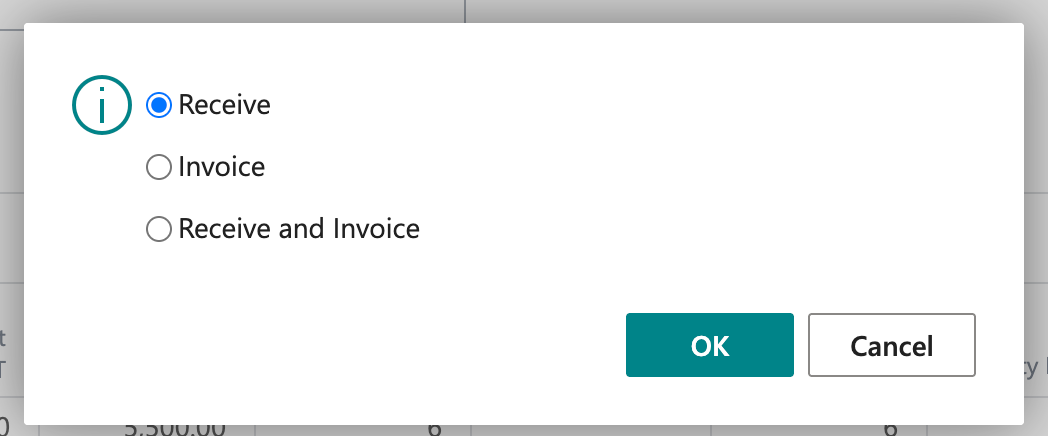
| Option | What it posts |
|---|---|
| Receive | A posted receipt: items go into inventory, no payable yet |
| Invoice | A posted invoice for what has been received |
| Receive and Invoice | Both at once |
After the receipt, the line looks like this:
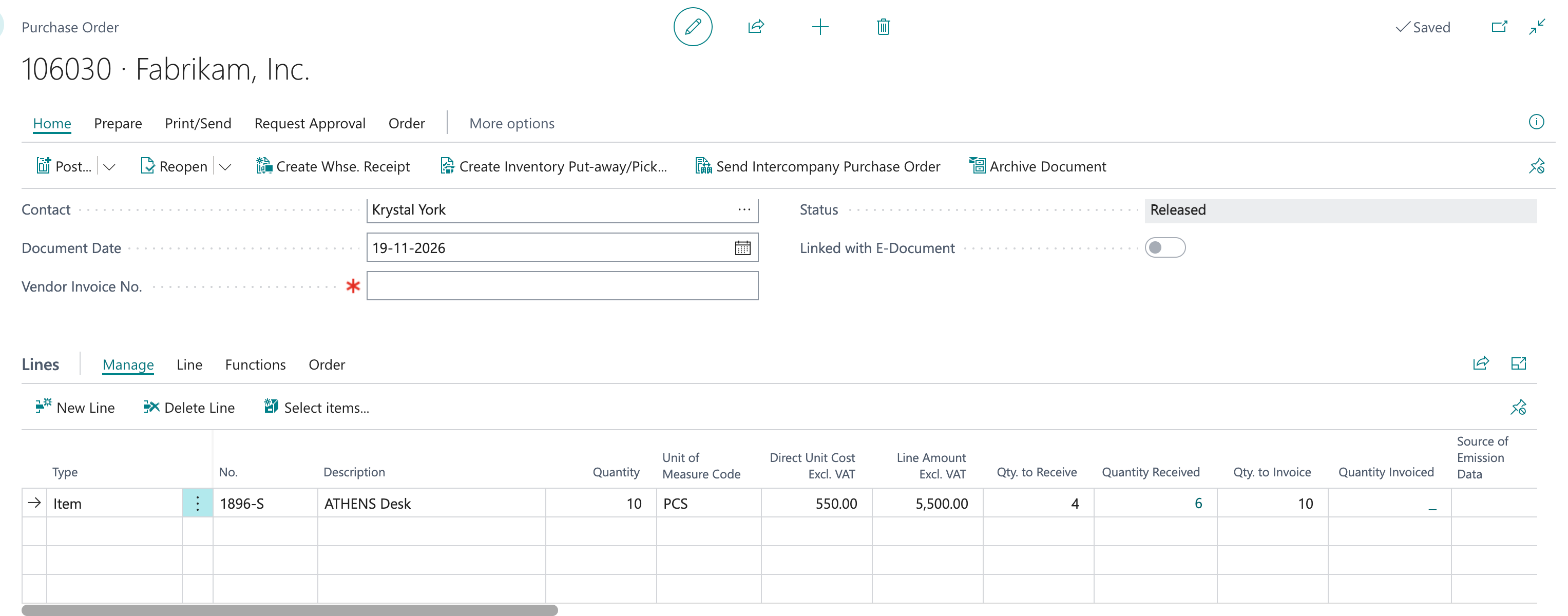
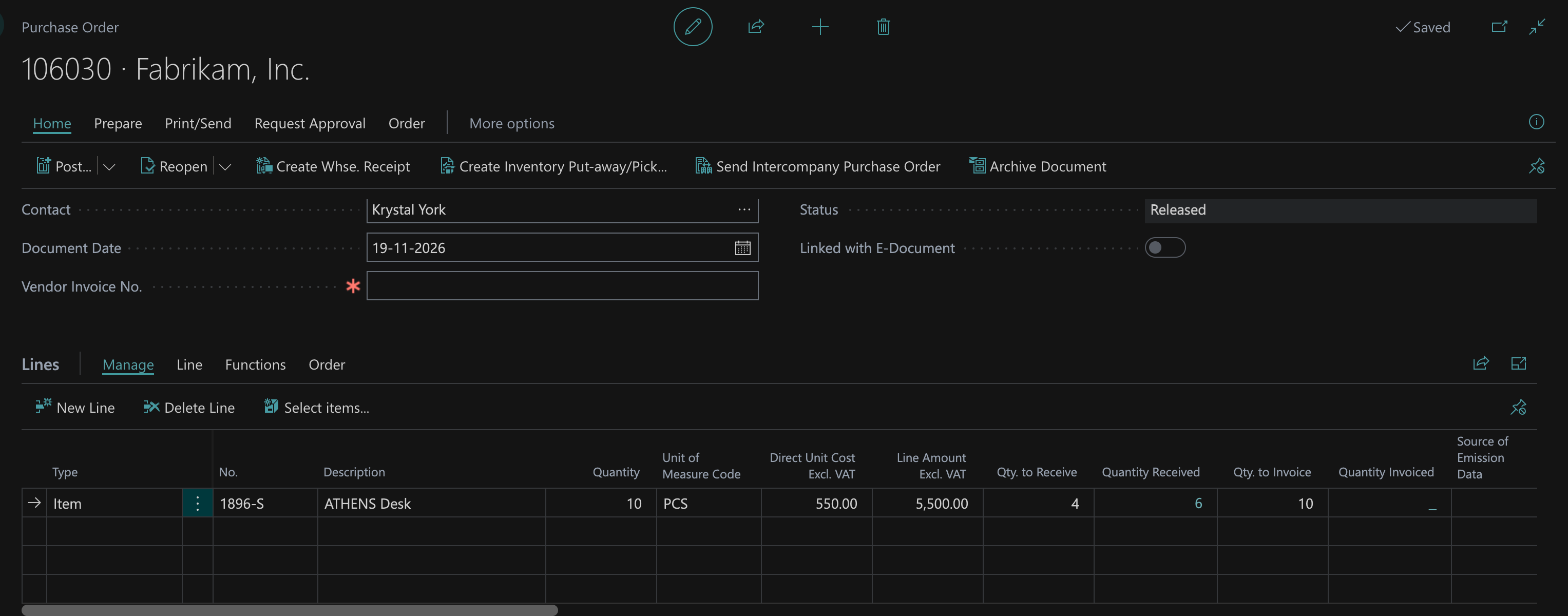
Six are received and four are still to come. The receipt is posted as 107241.
What a receipt posts
A receipt is the physical side. It creates an item ledger entry, so the 6 desks are in inventory and available to sell. Their value is the expected cost, because the vendor hasn’t billed you yet.
Whether that expected cost reaches the general ledger depends on Expected Cost Posting to G/L in Inventory Setup:
| Setting | What the receipt posts to the G/L |
|---|---|
| Off | Nothing. The value only lives on the item’s value entries until the invoice is posted |
| On | Expected cost to the interim inventory account, balanced by the interim inventory accrual account. The invoice reverses the interim entries and posts the actual cost |
Either way, nothing is posted to the vendor yet. There is no payable until there’s an invoice.
Step 3: Receive the remaining 4
The rest of the desks arrive. Qty. to Receive already shows 4. Choose Post… → Receive again. This creates receipt 107242.
Search for Posted Purchase Receipt Lines and filter on order 106030 to see both receipts with their quantities:


All 10 are now received. None are invoiced.
Step 4: Post the vendor’s invoice
Fabrikam sends one invoice for all 10 desks, number FAB-2026-1119. Before you post it, check three things against each other:
| Document | What it tells you |
|---|---|
| Purchase order | What you agreed to buy, and at what price |
| Receipts | What actually arrived |
| Vendor invoice | What the vendor is charging |
This is the three-way match. If the vendor bills 10 desks at 550.00, you ordered 10 at 550.00 and you received 10, you can post. If they don’t match, sort it out with the vendor before you invoice. Business Central helps with part of this: you can’t invoice more than you’ve received on a purchase order.
On the order’s General FastTab, enter Vendor Invoice No. FAB-2026-1119:
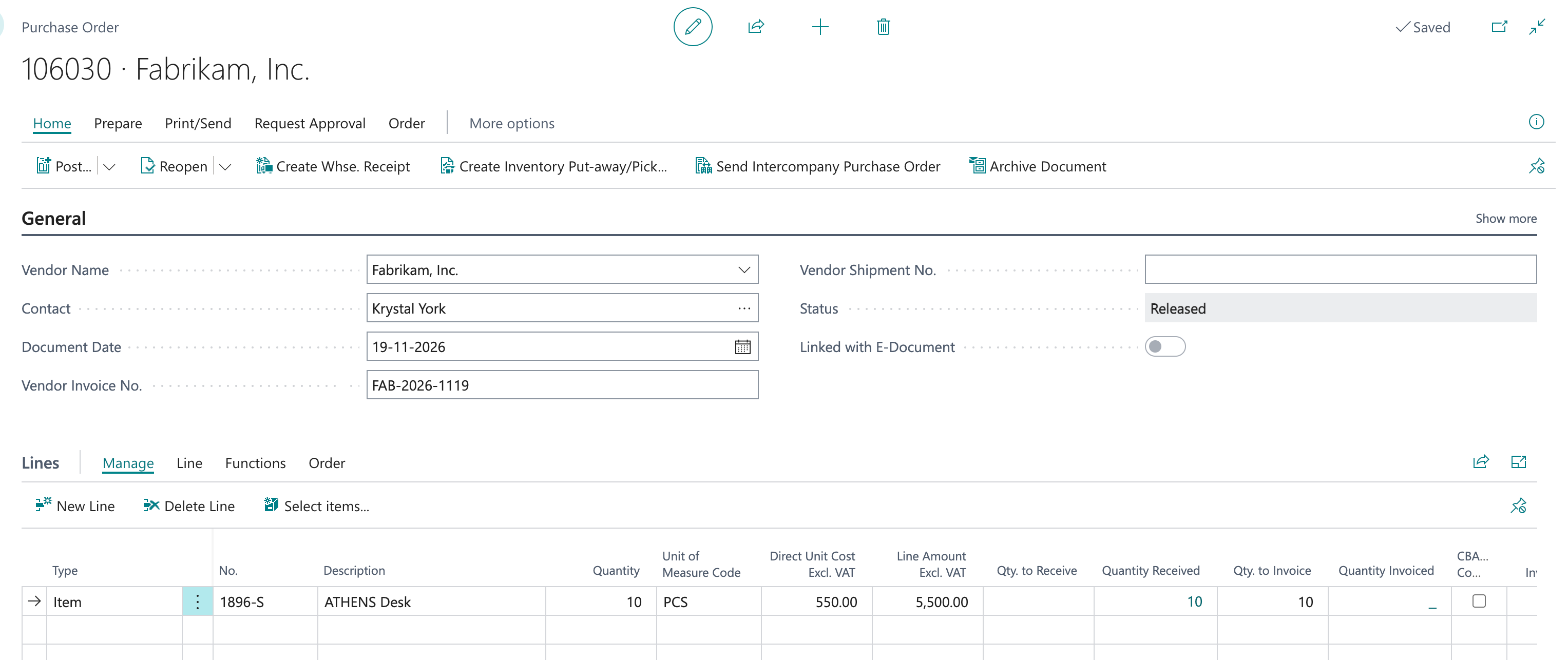
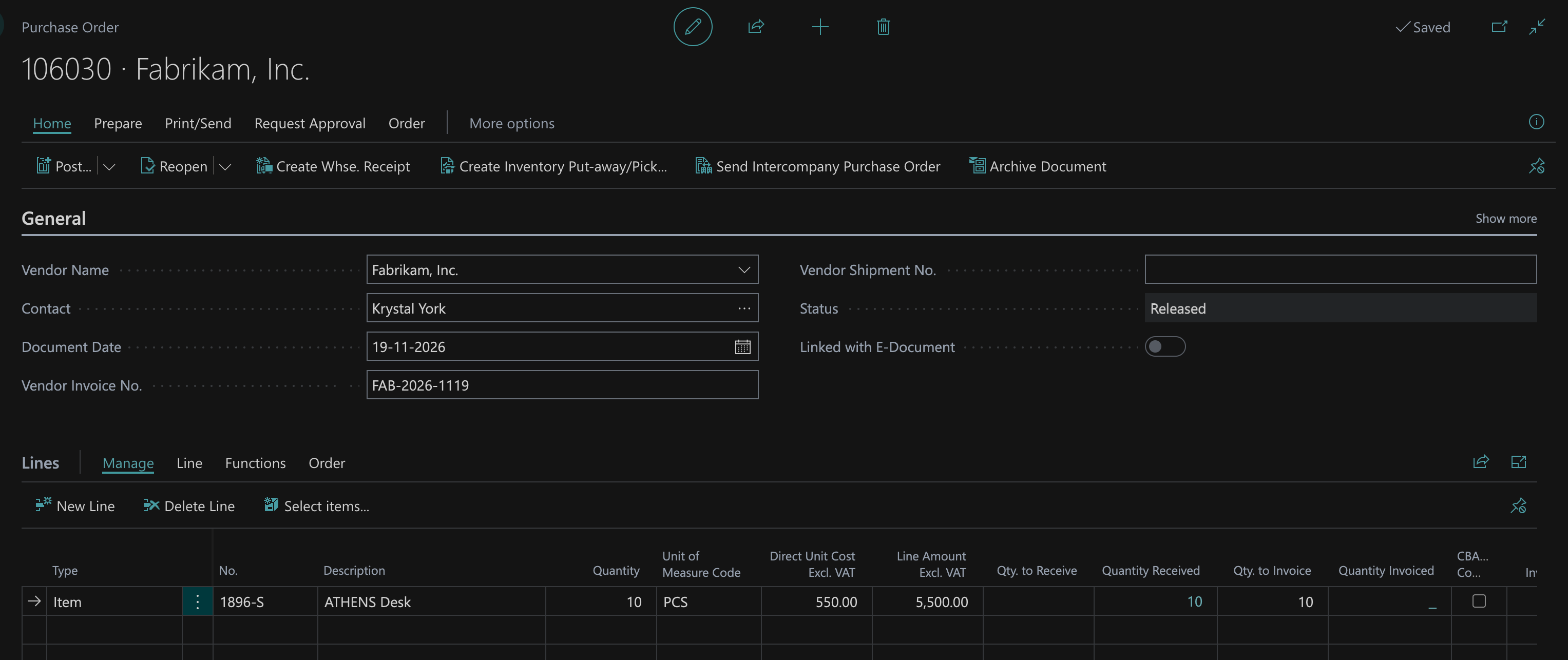
Then choose Post… → Invoice. Business Central invoices the 10 received desks on posted purchase invoice 108235. Two receipts, one invoice.


It’s open: Remaining Amount is the full 5,500.00 until the vendor is paid.
What the invoice posts
The invoice is the financial side. It creates a vendor ledger entry for -5,500.00, which is the payable, and posts the actual cost of the desks to inventory. If expected cost posting is on, the interim entries from the two receipts are reversed at the same time. In this company the invoice’s Related G/L Entries show exactly that: +3,300.00 and -3,300.00 for the first receipt, +2,200.00 and -2,200.00 for the second, the actual cost of 5,500.00 on 64140 Goods for Resale, and -5,500.00 on 82100 Vendors, Domestic.
Once every line is fully received and invoiced, purchase order 106030 is removed from the Purchase Orders list. The history lives in the posted receipts and the posted invoice. If you want to keep a copy of the order, turn on Archive Orders in Purchases & Payables Setup.
| Document | Quantity | Amount |
|---|---|---|
| Receipt 107241 | 6 | |
| Receipt 107242 | 4 | |
| Invoice 108235 (both receipts) | 10 | 5,500.00 |
Step 5: Pay the vendor
You could type the payment into a payment journal by hand and apply it, the same way the customer payment was applied in the Order-to-Cash post. For vendors there’s a faster way: let Business Central suggest what to pay.
Search for Payment Journals, open your batch and choose Prepare → Suggest Vendor Payments. Choose Show more to see all the options:
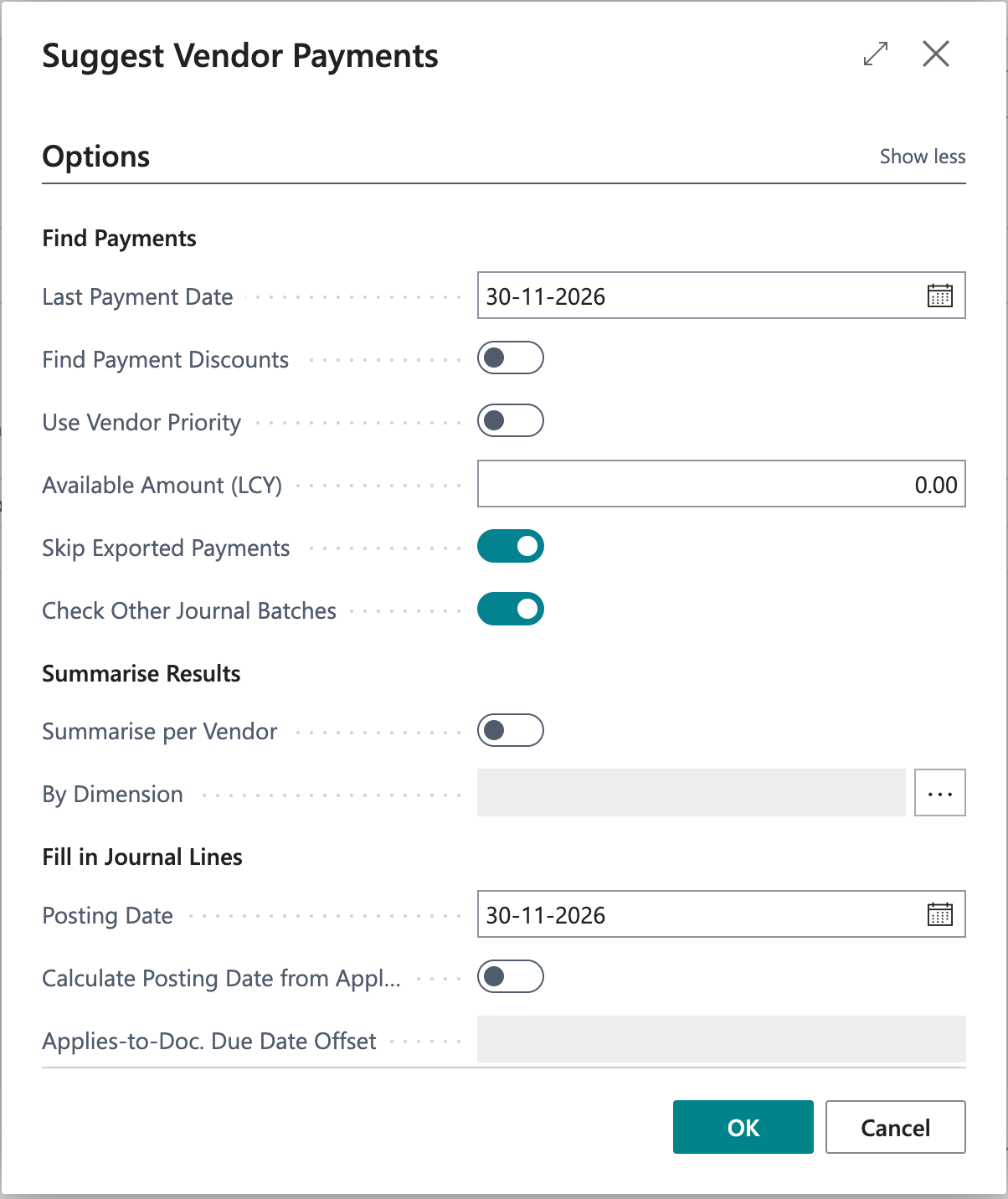
The options that matter most:
| Option | What it does |
|---|---|
| Last Payment Date | Includes open entries due on or before this date. Set to 30-11-2026 here so the invoice is picked up |
| Find Payment Discounts | Also includes entries where a payment discount is still available, even if they aren’t due yet |
| Use Vendor Priority | Sorts vendors by the Priority field on the vendor card. The lowest number, except 0, is paid first |
| Available Amount (LCY) | The most you want to pay out in this run. Combined with priority, it decides who gets paid when cash is short |
| Posting Date | The posting date of the suggested payment lines. 30-11-2026 here, the invoice’s due date |
| Vendor filter | On the Vendor FastTab. Filtered to 10000 here so only Fabrikam is suggested |
The batch job skips vendor ledger entries that are On Hold, and entries that already have a value in Applies-to ID, because those are already marked for another payment. If an invoice you expected is missing from the suggestion, check those two fields first.
Choose OK. I expected one line and got three:


Fabrikam already had two older invoices open, and both were due before the Last Payment Date, so the batch job suggested them too. Overdue lines are shown in red. That’s the point of the suggestion: it shows you everything you owe up to a date, and you decide what actually goes out.
Here I only want to pay this order’s invoice, so I selected the two older lines and deleted them (Ctrl+Delete). Deleting a journal line doesn’t touch the invoice; it stays open and will be suggested again next time. That leaves one line:


| Field | Value | Why |
|---|---|---|
| Document Type / Document No. | Payment G04001 | |
| Account Type / Account No. | Vendor 10000 | |
| Amount | 5,500.00 | Positive, because a payment debits the vendor |
| Applies-to Doc. Type / Applies-to Doc. No. | Invoice 108235 | Already filled in, so the payment closes this invoice when it posts |
| Bal. Account Type / Bal. Account No. | G/L Account 78200 | The default on this journal batch. Normally you’d use a bank account here, so the payment shows up in bank reconciliation |
There’s no payment discount on this invoice, so the amount is the full 5,500.00. Check Batch Total (LCY) at the bottom of the page before you post: it should be what you expect to leave the bank. Then Post. Business Central asks Do you want to post the journal lines?; choose Yes.
The G/L side is two lines:
| Account | Debit | Credit |
|---|---|---|
| 82100 Vendors, Domestic (from the vendor posting group) | 5,500.00 | |
| 78200 Business account (the balancing account) | 5,500.00 |
Step 6: Check that everything is closed
Open Vendor Ledger Entries for Fabrikam and filter on the two documents:


The invoice is -5,500.00 (a credit to the vendor, money you owe) and the payment is 5,500.00. Both have Remaining Amount 0.00 and Open cleared. The invoice is paid.
The whole cycle
| Step | Where | Result |
|---|---|---|
| 1 | Purchase Order | Order 106030 for 10 desks |
| 2 | Post → Receive | 6 received, receipt 107241 |
| 3 | Post → Receive | 4 received, receipt 107242 |
| 4 | Post → Invoice | 10 invoiced on 108235, order removed |
| 5 | Payment Journal | Suggested, applied and paid as G04001 |
| 6 | Vendor ledger entries | Invoice closed |